
Table of Contents
- Does Stremio Support Chromecast?
- What You Need for a Stremio Chromecast Setup
- Which Chromecast Do You Have?
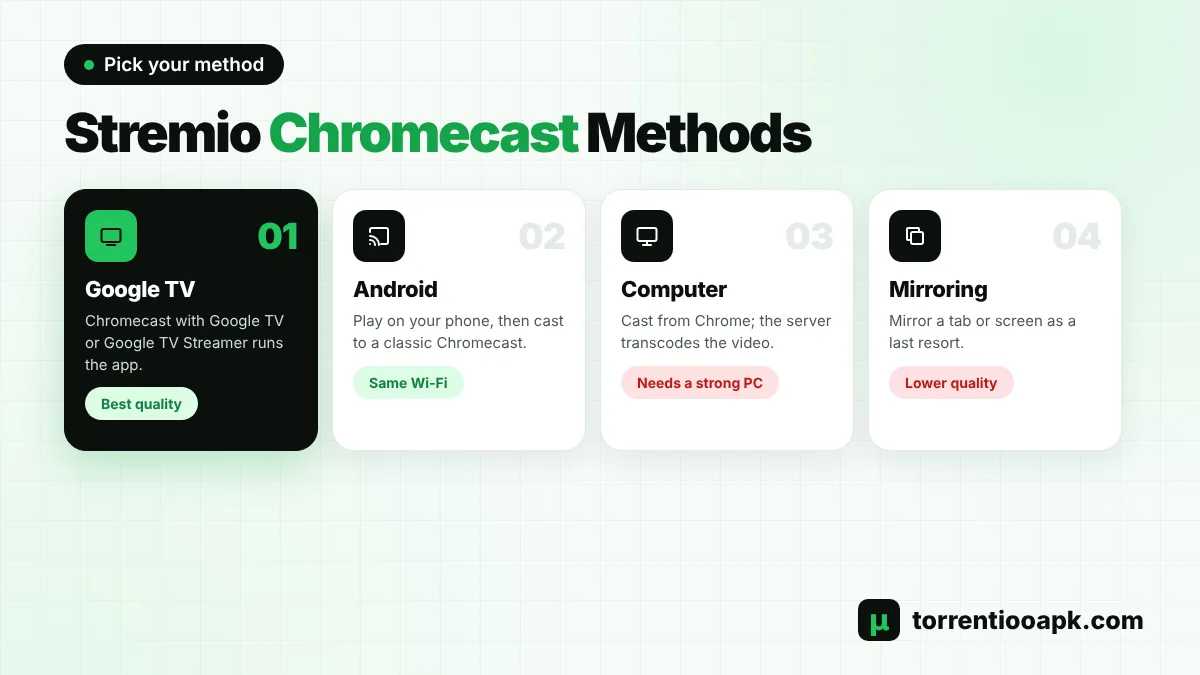
- Method 1: Install Stremio on Chromecast with Google TV (Best)
- Method 2: Cast From an Android Phone
- Method 3: Cast From a Computer or Stremio Web
- Method 4: Mirror the Screen as a Last Resort
- Chromecast Formats: What Plays Smoothly
- Google Replaced the Chromecast With the Google TV Streamer
- Stremio Chromecast With and Without Debrid
- Best Torrentio Settings for Stremio Chromecast
- Subtitles When Casting
- TVs With Chromecast Built In
- Check Your Chromecast in the Google Home App
- Stremio Chromecast Not Working? Fixes
- Classic Chromecast, Google TV or Fire TV: Which Is Better?
- Casting From iPhone
- Stremio Chromecast Tips
- Is Casting Torrentio Safe?
- Conclusion
- FAQs
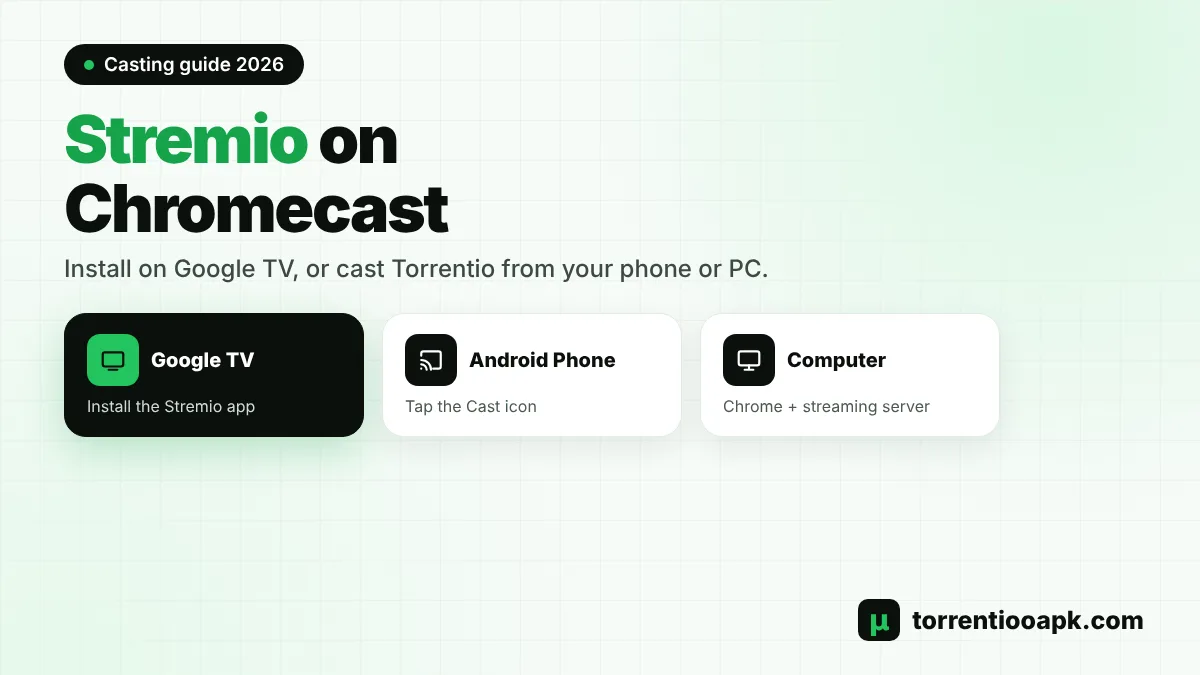
Want Torrentio on your TV through a Chromecast? A Stremio Chromecast setup is easy once you know which kind of Chromecast you have. Newer Google TV models can run the full Stremio app, while older cast-only Chromecasts need you to send the video from a phone or computer. Each route works, but they behave very differently with Torrentio streams.
This guide explains every Stremio Chromecast method in 2026, which file formats cast reliably, the Torrentio settings that prevent black screens and missing sound, how subtitles behave while casting, and how to fix the most common casting problems.
Quick answer: On a Chromecast with Google TV or Google TV Streamer, install the Stremio app from Google Play and add Torrentio from your phone, with no casting needed. On an older Chromecast, play the stream in Stremio on your Android phone or computer and tap the Cast icon, with both devices on the same Wi-Fi. Pick 1080p H.264 streams for the most reliable casting.
Does Stremio Support Chromecast?
Yes. Stremio has its own Chromecast receiver app, and its help centre recommends using Chromecast rather than DLNA casting. When you cast, Stremio sends the stream to the Chromecast, which plays it on your TV while your phone or computer acts as the remote.
There's an important catch. A Chromecast can only play certain video and audio formats. Stremio's help centre explains that converting other formats is processor-intensive and that some formats can't be converted at all, which can lead to a video that won't play or plays without sound. That's why your choice of Torrentio stream matters more when casting than when watching on the phone itself.
If Torrentio is new to you, our explainer on what Torrentio is covers the basics before you set up your Stremio Chromecast.
What You Need for a Stremio Chromecast Setup
- A Chromecast, Chromecast with Google TV or Google TV Streamer connected to your TV.
- A free Stremio account, so add-ons sync between devices.
- An Android phone or a computer for classic Chromecasts.
- Your phone or computer and the Chromecast on the same Wi-Fi network.
- Torrentio installed from its official configure page, ideally with a debrid key.
With these in place, a Stremio Chromecast session takes only a few taps to start.
Which Chromecast Do You Have?
The right Stremio Chromecast method depends on your model:
| Device | How it works | Stremio app | Best method |
|---|---|---|---|
| Chromecast (older, puck-shaped) | Receiver only, no remote or apps | No | Cast from phone or computer |
| Chromecast Ultra | Receiver only, supports 4K | No | Cast from phone or computer |
| Chromecast with Google TV | Full Google TV with remote | Yes, from Google Play | Install Stremio directly |
| Google TV Streamer | Full Google TV with remote | Yes, from Google Play | Install Stremio directly |
If your device came with a remote control, it runs Google TV and can install apps. If it has no remote and you control it only from your phone, it's a classic cast receiver.
Method 1: Install Stremio on Chromecast with Google TV (Best)
If you have a Chromecast with Google TV or the newer Google TV Streamer, skip casting entirely. These devices run Android TV underneath, so the full Stremio app installs from Google Play, which Stremio returned to in January 2026 after a short suspension. You get the TV interface, remote control and native playback, which handles far more formats than casting.
Step 1: Install Stremio
On the Google TV home screen, search for Stremio and install it from Google Play.
Step 2: Sign In
Launch the app and sign in with your account.
Step 3: Configure Torrentio on Your Phone
Open the official Torrentio configure page while signed in to the same account, choose your settings and tap Install.
Step 4: Reopen Stremio on the TV
Torrentio syncs automatically and appears on every title page.
This is the same setup as any Android TV device. Our Torrentio Android TV guide covers it in more detail, including sideloading if Stremio isn't listed in your country.
Method 2: Cast From an Android Phone
For a classic Chromecast, Android is the easiest sender for a Stremio Chromecast session. The phone runs Stremio and its streaming engine, then hands the video to the Chromecast.
Step 1: Join the Same Wi-Fi
Connect your phone to the same Wi-Fi network as the Chromecast. Guest networks often block casting.
Step 2: Start a Stream
Open a title in Stremio and pick a Torrentio stream. Let it start playing on the phone first.
Step 3: Tap the Cast Icon
Show the player controls and tap the Cast icon, then choose your Chromecast.
Step 4: Control Playback
Pause, seek and stop from the phone. Keep Stremio open and the phone awake for the smoothest Stremio Chromecast session.
With free peer-to-peer Torrentio streams, your phone downloads the torrent and serves it to the Chromecast, so phone battery and Wi-Fi strength matter. With a debrid service, cached streams are already on fast servers, which makes Stremio Chromecast playback much more reliable.
Method 3: Cast From a Computer or Stremio Web
You can also cast from the Stremio desktop app or from Stremio Web in Google Chrome. Stremio's web player includes Chromecast support, and the cast button sits in the player's control bar.
When casting from the web player, Stremio's code forces transcoding through the streaming server, converting the video into a format the Chromecast can play. The streaming server must be reachable from the Chromecast over your network, so in practice you need the Stremio desktop app or streaming server running on a computer on the same Wi-Fi. Transcoding uses a lot of processing power, so an older laptop may struggle with 4K or HEVC files.
Keep the computer awake during playback. If it sleeps, the Stremio Chromecast stream stops. Plugging in a laptop and disabling sleep in its power settings prevents this.
Method 4: Mirror the Screen as a Last Resort
If the Cast icon won't appear and a normal Stremio Chromecast session isn't possible, you can mirror your whole screen. On Android, use the Cast or Screen Cast option in quick settings. In Chrome on a computer, use the browser's Cast menu to cast a tab or the desktop. Mirroring re-encodes everything on your screen, so quality and smoothness are lower than a proper Stremio Chromecast session. Use it only when the other methods fail.
Chromecast Formats: What Plays Smoothly
Every Stremio Chromecast problem with black screens or missing sound comes back to formats. Older Chromecasts handle the most common combination best: H.264 video with AAC or AC3 audio, usually at 1080p. Newer 4K models, including Chromecast Ultra and Chromecast with Google TV, handle more formats such as HEVC, but casting still works best with widely supported files.
When a file isn't supported, Stremio may try to convert it on your phone or computer. That conversion takes a lot of processing power, can drain a phone battery quickly and sometimes fails altogether. Choosing the right Torrentio stream in the first place avoids all of that.
Google Replaced the Chromecast With the Google TV Streamer
In 2024 Google introduced the Google TV Streamer as the successor to the Chromecast line. Existing Chromecasts keep working and still receive casts, but new Google devices are full Google TV boxes with a remote and an app store. For Stremio users that's good news: a Google TV Streamer runs the full Stremio app, so a Stremio Chromecast setup on new hardware no longer depends on casting from a phone.
Stremio Chromecast With and Without Debrid
| Feature | Free P2P streams | Debrid streams |
|---|---|---|
| Start time | Depends on seeders | Usually seconds for cached files |
| Work done by your phone | Downloads and serves the torrent | Mostly passes a direct link |
| Battery use | High | Lower |
| Reliability on Wi-Fi | Variable | Much better |
If you cast often, a debrid service is the single best upgrade for a Stremio Chromecast setup. Our Torrentio Real Debrid and Torrentio TorBox guides show how to add one.
Best Torrentio Settings for Stremio Chromecast
Casting works best with common, moderate formats. Set up Torrentio to show those first:
- Prefer 1080p: it casts reliably and needs less bandwidth than 4K.
- Exclude BluRay REMUX: these huge files often stutter over Wi-Fi.
- Exclude Dolby Vision: many Chromecasts and TVs can't display it properly.
- Use a size limit: something like 8GB,2GB without debrid keeps files manageable.
- Add debrid: cached streams start faster and don't depend on your phone downloading pieces.
Look for H.264 (x264) video and AAC or AC3 audio in release names when casting from a phone or computer. HEVC (x265) and DTS audio are more likely to need transcoding or play without sound. Our Torrentio best settings guide explains each option, and our best debrid for Stremio guide compares services.
Subtitles When Casting
Subtitles can behave differently in a Stremio Chromecast session than on your phone. Plain text subtitles from add-ons such as OpenSubtitles usually cast well. Image-based or heavily styled embedded subtitles may not appear or may look different. If a subtitle track disappears when you start casting, choose an add-on subtitle in the same language instead.
On a Chromecast with Google TV, using the native Stremio app avoids most of these problems. For timing problems and extra subtitle sources, see our Stremio subtitles guide.
TVs With Chromecast Built In
Many TVs advertise "Chromecast built-in". There are two kinds. Android TV and Google TV sets from brands such as Sony, TCL and Hisense can install the full Stremio app from Google Play, so treat them like a Chromecast with Google TV. Other TVs only include the cast receiver, which works like a classic Chromecast: you send the stream from Stremio on your phone or computer. Check your TV's app store first, because a native app always beats casting.
Check Your Chromecast in the Google Home App
Before troubleshooting Stremio, open the Google Home app on your phone. If your Chromecast doesn't appear there, Stremio won't see it either. Use Google Home to confirm the device is online, rename it so it's easy to spot in the Cast menu, and install firmware updates. A Chromecast that works with YouTube or other apps but not Stremio usually points to a format or network permission issue rather than a broken device.
Stremio Chromecast Not Working? Fixes
The Cast Icon Is Missing
Make sure both devices are on the same Wi-Fi network and that the Chromecast appears in the Google Home app. On Android, allow Stremio to find devices on your local network if asked. Turn off any VPN for a test, because some VPNs hide local devices. Some routers have a "client isolation" or "AP isolation" setting that blocks casting; switch it off. Then restart the Chromecast, router and phone.
Black Screen or Endless Loading
Check that the stream plays on the phone first. If it does, the format is probably the problem. Try a 1080p H.264 release, or a cached debrid stream.
Video Plays but There's No Sound
The audio format, often DTS or TrueHD, isn't supported. Pick a release with AAC or AC3 audio, or switch the audio track if the file has several.
Stream Keeps Buffering
Move the phone and Chromecast closer to the router, use the 5 GHz band, and choose a smaller file. Our Stremio buffering guide has more fixes.
No Torrentio Streams at All
When Torrentio returns nothing on every device, the problem is usually the add-on's server. Our Torrentio down guide shows how to check.
Classic Chromecast, Google TV or Fire TV: Which Is Better?
If you're shopping for a new device, this comparison sums up the Stremio Chromecast question:
| Feature | Classic Chromecast | Chromecast with Google TV | Fire TV Stick |
|---|---|---|---|
| Stremio app on the device | No | Yes | Yes, on Fire OS models |
| Needs a phone or PC | Yes | No | No |
| Format support | Limited, may transcode | Wide | Wide |
| Remote control | No | Yes | Yes |
| Best for | Occasional casting | Full Stremio setup | Full Stremio setup |
A classic Chromecast is fine for the odd movie, but a device that runs the Stremio app is far better for daily viewing. See our Torrentio Firestick guide if you're considering a Fire TV.
Casting From iPhone
iPhone users have fewer options. Stremio Web in Safari doesn't offer Chromecast, and browsers on iOS can't cast Stremio's player the way Chrome on a computer can. The most reliable route is to use a Chromecast with Google TV and install Stremio on it directly, then control everything with the TV remote. Our Torrentio iPhone guide covers what works on Apple devices.
Stremio Chromecast Tips
- Use the native Stremio app on Google TV models whenever you can.
- Keep the sending phone or computer awake and plugged in.
- Choose 1080p H.264 streams with AAC or AC3 audio for classic Chromecasts.
- Add a debrid service for faster starts and fewer stalls.
- Stop casting when you're done so the Chromecast is free for other apps.
Is Casting Torrentio Safe?
Casting itself is safe: it simply sends a video from one device to another on your home network. The usual Torrentio points still apply. Without debrid, your IP address is visible to everyone sharing the same torrent, and copyright rules vary from one country to another. A debrid service keeps your devices out of the swarm. Read our is Torrentio safe guide for details.
Conclusion
The best Stremio Chromecast setup depends on your model. With a Chromecast with Google TV or Google TV Streamer, install Stremio from Google Play and add Torrentio from your phone for full native playback. With an older Chromecast, cast from Stremio on Android or a computer on the same Wi-Fi, and choose 1080p H.264 streams to avoid black screens and missing sound. Add debrid for the smoothest experience.
More device walkthroughs are in our Torrentio install guide, and the Torrentio APK home page has the complete overview.
FAQs
Does Stremio work with Chromecast?
Yes. You can cast from Stremio on Android or a computer to a Chromecast. On a Chromecast with Google TV or Google TV Streamer, you can install the full Stremio app from Google Play instead.
Why is there no sound when I cast Stremio?
The stream's audio format, such as DTS or TrueHD, isn't supported by the Chromecast. Choose a release with AAC or AC3 audio, or another audio track.
Why can't I see the Cast icon in Stremio?
Your phone and Chromecast must be on the same Wi-Fi network. Turn off VPNs for a test, allow local network access, disable router client isolation and restart both devices.
Can I cast Torrentio without Real-Debrid?
Yes. Your phone or computer downloads the torrent and sends it to the Chromecast. A debrid service makes playback faster and more reliable, because cached files stream from fast servers.
Can I install Stremio on a Chromecast?
Only on Chromecast with Google TV and Google TV Streamer, which run Google TV and can install apps from Google Play. Older Chromecasts are receivers and can only be cast to.
Can I cast Stremio from an iPhone?
Not easily. Stremio Web in Safari doesn't offer Chromecast casting. The best option is a Chromecast with Google TV running the Stremio app directly.