
Table of Contents
- What You Need for Torrentio Firestick Streaming
- Can You Use Torrentio on a Firestick?
- Step 0: Check Your Firestick Model (Fire OS or Vega OS)
- Step 1: Install Stremio on Your Firestick
- Install Stremio With Downloader (Fire OS Only)
- Torrentio Firestick Remote Tips
- Step 2: Sign In to Stremio
- Step 3: Add Torrentio From Your Phone (Easiest Method)
- Add Torrentio Directly on the Firestick
- Add Real-Debrid or TorBox on Your Firestick
- Best Torrentio Firestick Settings
- Best Firestick for Torrentio in 2026
- Torrentio Firestick Setup on Fire TV Smart TVs
- Torrentio Firestick vs Android TV Box
- How to Stop Buffering on Fire TV
- Common Torrentio Firestick Mistakes
- Torrentio Firestick Not Working? Quick Fixes
- How to Update Torrentio and Stremio on Firestick
- How to Remove Torrentio From Your Firestick
- Is Torrentio Safe on a Firestick?
- Torrentio Firestick Setup Checklist
- Conclusion
- FAQs
Want to set up Torrentio Firestick streaming the easy way? Torrentio isn't a separate Fire TV app. It's an add-on for Stremio, so you install Stremio on your Firestick first and then add Torrentio to it. Since December 2025, Stremio has been available in the official Amazon Appstore, which makes the whole job much simpler than before.
This guide walks you through every step: checking whether your Fire TV model supports it, installing Stremio, adding Torrentio without typing long links, connecting Real-Debrid, choosing the best settings for Fire TV and fixing the most common problems.
Quick steps: On your Firestick, search "Stremio" and install it from the Appstore › sign in › on your phone, open torrentio.strem.fun/configure while signed in to the same Stremio account › tap Install › reopen Stremio on the Firestick. Torrentio is now ready.
Once it's set up, our guide on how to use Torrentio shows how to pick the best stream with a remote.
What You Need for Torrentio Firestick Streaming
Get these ready before you start, and the Torrentio Firestick setup will take about five minutes:
- A Fire TV Stick, Fire TV Cube or Fire TV smart TV connected to the internet.
- A free Stremio account. Add-ons sync through it, so it's the key to an easy setup.
- A phone or computer with a web browser for the configure page.
- At least 1GB of free storage on the stick.
- Optional: a Real-Debrid, TorBox or other debrid plan for faster streams.
Can You Use Torrentio on a Firestick?
Yes. Torrentio works on any Firestick or Fire TV device that can run the Stremio app. Torrentio itself runs on a web server, so nothing extra is installed on the stick. Stremio simply asks Torrentio for streams when you open a movie or an episode.
Because Torrentio lives on a server, you also never need to update it on the stick. New features and fixes reach your Fire TV automatically. The only real limit is your Fire TV model. Amazon has started moving new devices to a new operating system called Vega OS, and that affects how apps can be installed. Check your model before you start.
Step 0: Check Your Firestick Model (Fire OS or Vega OS)
Older and most current Fire TV devices run Fire OS, which is based on Android. A few newer models run Vega OS, which doesn't support sideloading or the Downloader app. Here's how they split:
| Runs Fire OS (sideloading works) | Runs Vega OS (no sideloading) |
|---|---|
| Fire TV Stick 4K Max | Fire TV Stick 4K Select (2025) |
| Fire TV Stick 4K Plus | Fire TV Stick HD, 2nd generation (2026) |
| Fire TV Stick HD, 1st generation (2024) | Fire TV Stick 4K, 3rd generation (2026) |
| Fire TV Cube and smart TVs with Fire TV built in | |
| Older Fire TV Stick, Lite and 4K models |
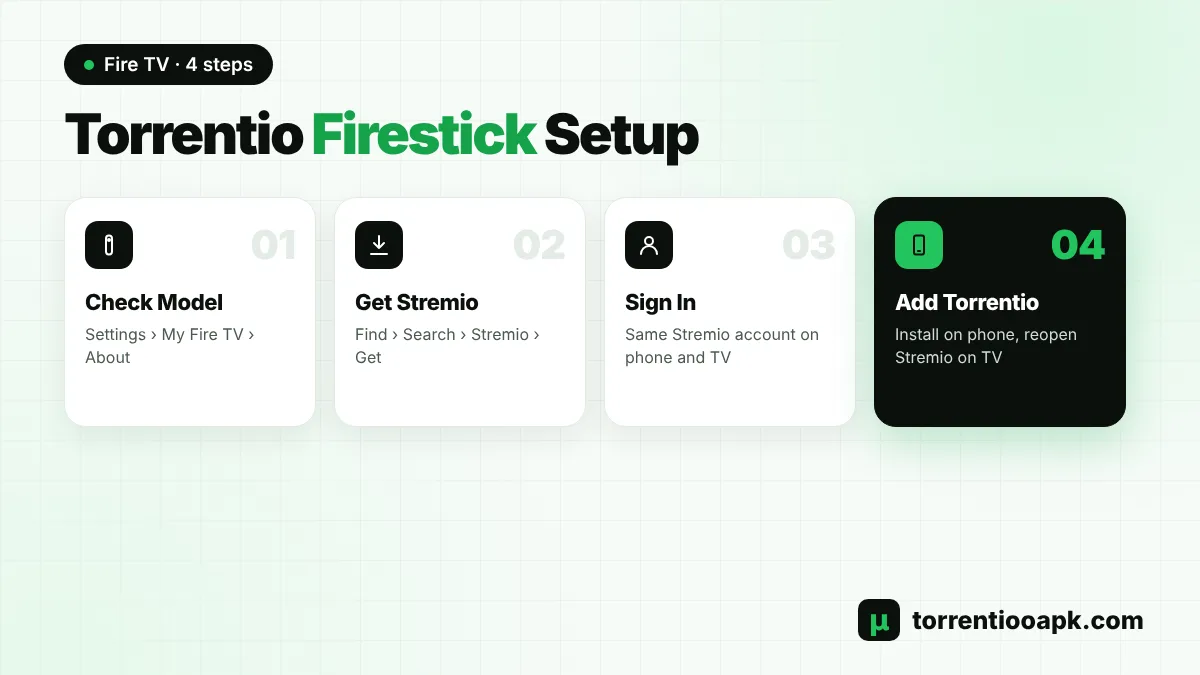
To see your model, go to Settings › My Fire TV › About. On a Vega OS stick you can only install apps that are in the Amazon Appstore for that device. If Stremio isn't listed there, you won't be able to use Torrentio on that stick, and an Android TV device or a Fire OS model is the better choice.
Step 1: Install Stremio on Your Firestick
The easiest and safest way is the official Amazon Appstore:
Open Search
On the Fire TV home screen, go to Find › Search.
Search for Stremio
Type "Stremio" with the on-screen keyboard or say it into the Alexa remote.
Install the App
Select the Stremio app and choose Get or Download.
Open Stremio
When the install finishes, select Open. You can also find it later under Apps.
Install Stremio With Downloader (Fire OS Only)
If Stremio doesn't appear in the Appstore in your country, you can install the official Android TV version on a Fire OS device:
- Install the free Downloader app from the Appstore.
- Go to Settings › My Fire TV › About and click your device name seven times to unlock Developer Options.
- Open Settings › My Fire TV › Developer Options › Install unknown apps and turn it on for Downloader.
- Open Downloader, type
stremio.com/downloadsand open the TV section. - Choose the Android TV APK for ARM devices and install it. If it fails, try the ARM64 file.
- After installing, turn "Install unknown apps" off again for better security.
Only download Stremio from its official website. Modified "Stremio" apps from other sites can contain unwanted code.
Torrentio Firestick Remote Tips
Typing with the Fire TV remote is the slowest part of any setup. These tricks save time:
- Use your phone as a keyboard: the free Amazon Fire TV app for Android and iPhone works as a remote with a full keyboard.
- Use voice search: hold the Alexa button and say "Stremio" to find the app.
- Use account sync: do every Torrentio Firestick change on your phone, then reopen Stremio on the TV.
Step 2: Sign In to Stremio
Open Stremio on the Firestick and sign in with your Stremio account. If you don't have one, create a free account on your phone or computer at stremio.com first, because typing with a remote is slow. Signing in is important: your add-ons are saved to your account, and that's what makes the next step so easy. Your library, watch history and "continue watching" list also follow you, so you can start a film on your phone and finish it on the TV.
Step 3: Add Torrentio From Your Phone (Easiest Method)
This is the best way to finish your Torrentio Firestick setup, because you never have to type a long link with the remote:
- On your phone or computer, open Stremio or Stremio Web and sign in with the same account.
- Open the Torrentio configure page and choose your settings.
- Tap Install and confirm inside Stremio.
- On the Firestick, close Stremio completely and open it again.
- Go to Add-ons › Installed. Torrentio is now listed.
The whole sync usually takes less than a minute. If Torrentio still doesn't appear, sign out of Stremio on the Firestick and sign in again. Need help with the phone part? Our guide on how to install Torrentio on Stremio covers Android, iPhone and PC step by step.
Add Torrentio Directly on the Firestick
No phone nearby? You can add Torrentio on the stick itself. Open Add-ons, select the search bar and type torrentio.strem.fun/manifest.json, then select Install. Use the Fire TV app keyboard on your phone to type it faster and avoid mistakes. This installs the default settings, which work fine for most people. You can change them later from your phone using the gear icon, and the new settings will sync back to the Firestick. All official links are listed on our Torrentio addon link page.
Add Real-Debrid or TorBox on Your Firestick
A debrid service makes a huge difference to any Torrentio Firestick setup, because the stick doesn't have to download pieces from other users. Cached streams play from fast servers and start in seconds, even in 4K on a 4K Max.
Do the debrid setup on your phone or computer: paste your API key on the Torrentio configure page, tap Install, and reopen Stremio on the stick. Remember that Real-Debrid allows one IP address at a time, so don't stream on the Firestick at home and on your phone's mobile data at the same moment. Our Torrentio Real Debrid guide has the full steps. TorBox users can follow the Torrentio TorBox guide.
Best Torrentio Firestick Settings
Fire TV sticks have limited memory, and many connect over Wi-Fi. These settings give the smoothest Torrentio Firestick experience on every Fire OS model:
- Sorting: by quality then seeders without debrid, by quality then size with debrid.
- Exclude: Cam, Screener, Unknown and BluRay REMUX. Exclude Dolby Vision if your TV doesn't support it, to avoid green or purple colours.
- 4K: keep it only on a 4K Max, 4K Plus or Cube with a 4K TV and fast internet.
- Size limit:
8GB,2GBwithout debrid (movies, episodes). - Max results: 5, so the list is quick to scroll with the remote.
Every option is explained in our full Torrentio best settings guide.
Best Firestick for Torrentio in 2026
Not every Fire TV device gives the same experience. If you're buying a stick mainly for a Torrentio Firestick setup, here's how the current models compare:
| Device | Good for Torrentio? | Notes |
|---|---|---|
| Fire TV Stick 4K Max | Best choice | Fire OS, fast Wi-Fi, handles 4K and debrid streams well |
| Fire TV Stick 4K Plus | Very good | Fire OS, supports 4K and sideloading |
| Fire TV Cube | Very good | Fire OS, Ethernet port built in |
| Fire TV Stick HD (1st gen, 2024) | Good for 1080p | Fire OS, no 4K |
| Fire TV Stick 4K Select, HD 2nd gen, 4K 3rd gen | Limited | Vega OS, no sideloading or Downloader |
If you already own a Vega OS stick and Stremio isn't in its Appstore, an Android TV or Google TV device is a better option for Torrentio.
Torrentio Firestick Setup on Fire TV Smart TVs
Many TVs from brands like Insignia, Toshiba, Hisense and Amazon's own Fire TV Omni series have Fire TV built in. These TVs run Fire OS, so the Torrentio Firestick steps in this guide work on them too. Install Stremio from the Appstore, sign in and add Torrentio from your phone. Built-in Fire TV models often have an Ethernet port, which is great for smooth 4K and large debrid files.
Torrentio Firestick vs Android TV Box
Both work well, but there are a few differences. Android TV and Google TV devices run full Android, so Stremio installs from Google Play or as an official APK, and sideloading is always possible. A Torrentio Firestick setup is just as good on Fire OS models, and the Fire TV interface is simple for family members. On new Vega OS sticks, though, you lose the option to sideload. If you want maximum flexibility, choose an Android TV box or a Fire OS stick like the 4K Max. Our Torrentio Android TV guide covers the Google TV setup.
How to Stop Buffering on Fire TV
- Connect to 5GHz Wi-Fi, or use an Amazon Ethernet adapter for the most stable speed.
- Keep at least 1GB to 2GB of free storage. Uninstall apps you don't use.
- Clear Stremio's cache in Settings › Applications › Manage Installed Applications › Stremio.
- Restart the stick once a week from Settings › My Fire TV › Restart.
- Pick streams with more seeders or a cached debrid tag.
- Choose 1080p instead of 4K on slower connections.
Common Torrentio Firestick Mistakes
Most problems people report come from a handful of simple mistakes:
- Using two different Stremio accounts: Torrentio installed on your phone won't appear on a Firestick signed in to another account.
- Using Stremio as a guest: guest mode doesn't sync add-ons at all.
- Installing modified apps: "Stremio Pro" or "Premium" APKs from random sites are not official and can be unsafe.
- Leaving "Install unknown apps" on: turn it off after you finish sideloading.
- Choosing huge 4K files on a basic stick: the HD models can't play 4K, and big files buffer on slow Wi-Fi.
Torrentio Firestick Not Working? Quick Fixes
Problem: Stremio Isn't in the Appstore
Solution
- On a Fire OS device, install the official Android TV version with Downloader.
- On a Vega OS stick, sideloading isn't possible, so use another device.
Problem: Torrentio Doesn't Show on the Firestick
Solution
- Make sure you used the same Stremio account on both devices.
- Log out and log in again on the Firestick to force a sync.
Problem: No Streams Appear
Solution
- Remove strict filters and check your debrid key.
- Check the server status with our Torrentio down guide.
Problem: Stremio Crashes or Freezes
Solution
- Update Fire OS and Stremio, clear the cache and restart the stick.
- Lower the quality and exclude very large files.
How to Update Torrentio and Stremio on Firestick
Torrentio updates itself on the server, so your Torrentio Firestick add-on is always the latest version without doing anything. Stremio is different. If you installed it from the Appstore, Fire TV updates it automatically when app updates are turned on. If you sideloaded it, download the newest Android TV version from the official website with Downloader and install it over the old one. Your account, library and add-ons stay in place.
How to Remove Torrentio From Your Firestick
Open Stremio, go to Add-ons › Installed, select Torrentio and choose Uninstall. Because add-ons sync to your account, it disappears from your other devices too. To remove Stremio itself, go to Settings › Applications › Manage Installed Applications › Stremio › Uninstall.
Is Torrentio Safe on a Firestick?
Torrentio installs nothing on your Firestick, so it can't harm the device. Install Stremio only from the Appstore or the official website, and turn "Install unknown apps" off after sideloading. Without debrid, free streams share your IP address with other users, and many torrents are copyrighted. Read our full guide, is Torrentio safe, for privacy and legal tips.
Torrentio Firestick Setup Checklist
- Your Fire TV runs Fire OS, or Stremio is listed in its Appstore.
- Stremio is installed from the Appstore or the official website.
- You're signed in to the same Stremio account on the stick and your phone.
- Torrentio is installed from the official configure page.
- Your debrid key is added, if you use one.
- Filters suit your TV: Dolby Vision and REMUX excluded where needed.
- A test movie plays without long buffering.
Tick all seven points and your Torrentio Firestick setup is complete.
Conclusion
A Torrentio Firestick setup takes only a few minutes. Check that your stick runs Fire OS or offers Stremio in the Appstore, install Stremio, sign in, and add Torrentio from your phone with the same account. Add a debrid service for the smoothest playback, use the Fire TV settings above, and keep your stick tidy to avoid buffering. Find more guides on our Torrentio APK home page.
FAQs
Is Stremio available on the Amazon Appstore?
Yes. Stremio has been available in the official Amazon Appstore for Fire TV since December 2025. Search for Stremio on your Firestick and install it like any other app.
Can I install Torrentio on a Fire TV Stick 4K Select?
The Fire TV Stick 4K Select runs Vega OS, which does not allow sideloading. You can only use Torrentio on it if the Stremio app is offered in the Appstore for that device.
How do I add Torrentio to Stremio on Firestick without typing?
Sign in to the same Stremio account on your phone and on the Firestick. Install Torrentio on your phone, then reopen Stremio on the Firestick and the add-on appears automatically.
Do I need Real-Debrid for Torrentio on Firestick?
No, Torrentio works without it. Real-Debrid or TorBox is optional, but it makes streams start faster and buffer less, which helps a lot on a Firestick.
Why does Torrentio buffer on my Firestick?
Buffering usually comes from slow Wi-Fi, low seeders or very large files. Use 5GHz Wi-Fi or Ethernet, choose 1080p, add a size limit and pick streams with more seeders or a cached debrid tag.
Which Firestick is best for Torrentio?
A Fire TV Stick 4K Max or 4K Plus is a good choice, because they run Fire OS, support Stremio and handle 4K. Avoid Vega OS models if you need to sideload apps.