
Table of Contents
- How Do Stremio Subtitles Work?
- How to Turn On Stremio Subtitles
- Embedded vs Add-on Subtitles: What's the Difference?
- How to Set a Default Subtitle Language
- How to Fix Stremio Subtitles Out of Sync
- How to Add Your Own Subtitle File
- Best Stremio Subtitles Add-ons in 2026
- Are Stremio Subtitles Free?
- Why Are There No Stremio Subtitles in My Language?
- Stremio Subtitles on Different Devices
- How to Turn Off Stremio Subtitles
- Using an External Player for Better Subtitles
- Subtitles for Anime and Foreign Films
- Torrentio Tips for Better Subtitles
- Subtitle Styles: Size, Colour and Position
- Common Stremio Subtitles Problems and Fixes
- Stremio Subtitles Checklist
- Conclusion
- FAQs
Found the perfect Torrentio stream, but there are no subtitles, or they're out of sync? Stremio subtitles confuse a lot of people because Stremio doesn't make subtitles itself. They come from add-ons and from the video file, so what you see depends on your setup. The good news is that a few minutes of setup fixes almost every problem.
This guide explains where Stremio subtitles come from, how to turn them on, how to set a default language, how to fix timing, how to add your own subtitle file, the best subtitle add-ons in 2026, and what to do when your language is missing. Every tip works with Torrentio streams on phones, computers and TVs.
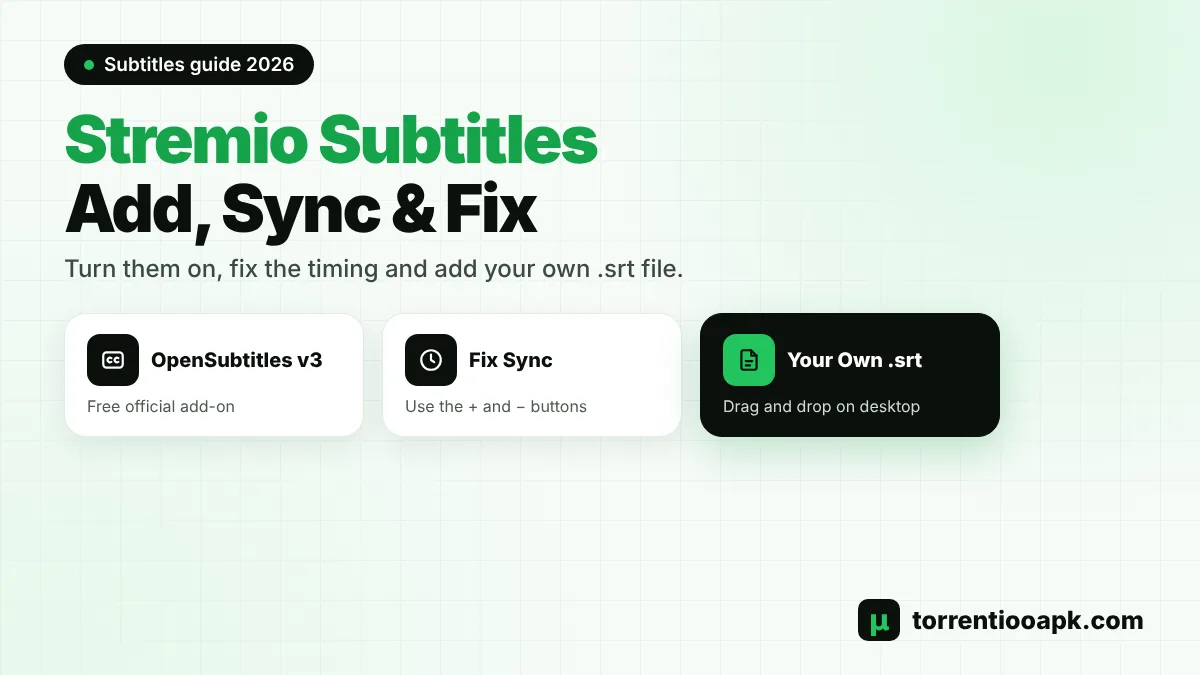
Quick answer: Start playing a video, open the subtitles menu in the player and choose your language. If nothing appears, install the official OpenSubtitles v3 add-on. If the text is early or late, use the + and − timing buttons in the subtitles menu. On a computer, you can drag and drop your own .srt file onto the player.
How Do Stremio Subtitles Work?
Stremio is a player and a catalog. It doesn't create or host subtitles. Stremio's help centre says its subtitles come from OpenSubtitles, and like streams, they're delivered through add-ons. When you play a video, Stremio asks every installed subtitle add-on for matching files and lists them in the player.
There's a second source too: the video itself. Many releases, especially MKV files, carry subtitle tracks inside the file. These embedded tracks also appear in the subtitles menu, often labelled by language.
Torrentio is a stream add-on, so it finds videos, not subtitles. That's why Stremio subtitles can look different from one Torrentio stream to the next: one release may include embedded subtitles while another has none. If you're new to the setup, read what Torrentio is and how it works first.
How to Turn On Stremio Subtitles
Turning on Stremio subtitles takes a few seconds on any device:
Step 1: Play a Video
Open a movie or episode and pick a Torrentio stream. Subtitles are chosen during playback, not before.
Step 2: Open the Subtitles Menu
Show the player controls and select the subtitles icon, usually a speech bubble or "CC" symbol.
Step 3: Choose a Language
Pick your language. Stremio lists embedded tracks and add-on results together, sometimes with several files per language.
Step 4: Try Another File if Needed
If the first file is out of sync, select another one in the same language. Different files are made for different releases.
On a TV remote, press the down or OK button during playback to show the controls, then move to the subtitles icon. The menu works the same on Android TV, Firestick and the Samsung app.
Embedded vs Add-on Subtitles: What's the Difference?
Stremio subtitles come in two flavours, and knowing the difference saves time:
| Type | Where it comes from | Sync | Styling |
|---|---|---|---|
| Embedded | Inside the video file, often MKV | Almost always correct | Can include fonts and colours |
| Add-on | OpenSubtitles and other add-ons | Depends on the release | Plain text, styled by your settings |
| Local file | Your own .srt file | Depends on the source | Plain text in most cases |
If an embedded track exists in your language, use it first. Add-on Stremio subtitles are the backup when the file has none, or when you need a language the release doesn't include.
How to Set a Default Subtitle Language
Choosing a language for every episode gets old quickly. Stremio lets you set a default so subtitles in your language load automatically when they're available.
- Open Settings in Stremio and go to the Player section.
- Find the subtitles options and pick your preferred language.
- Adjust the subtitle size and colours while you're there, if your device offers them.
Option names differ a little between Stremio for desktop, Android, TV and the web, but they're always in the player settings. Your choice applies to every stream, including Torrentio. If you also want audio in your language, set Torrentio's priority language on the configure page. Our Torrentio best settings guide explains that option.
How to Fix Stremio Subtitles Out of Sync
Out-of-sync Stremio subtitles are the most common complaint. It happens because a subtitle file is timed for one specific release, and your stream may be a different cut, frame rate or source. Try these fixes in order:
1. Adjust the Timing
Stremio's help centre recommends the subtitles menu: use the + and − buttons to move the text later or earlier. Small steps of a few hundred milliseconds usually fix a constant delay.
2. Pick a Different File
If the gap grows as the video plays, timing won't fix it. The subtitle was made for a version with a different frame rate. Choose another file in the same language.
3. Pick a Different Stream
Popular releases have the most matching subtitles. If you watch with Torrentio, a well-known WEB-DL or BluRay release usually syncs better than a rare one. Our guide on how to use Torrentio explains how to read release names.
4. Use the Embedded Track
Subtitles inside the video file are made for that exact file, so they're almost always in sync. Look for streams whose names mention subs or multiple subtitle languages.
How to Add Your Own Subtitle File
Sometimes you already have the perfect .srt file. Stremio's help centre says you can use external subtitles by dragging and dropping them into the Stremio player window. This works in the desktop app on Windows, Mac and Linux.
On phones and TVs there's no drag and drop. For those, the free Community Subtitles add-on is a clever fix. It lets you upload subtitle files through its website and then shows them on any device where Stremio is signed in. Subtitles are matched to the video's hash, so uploads also help other viewers of the same file. You create an account, copy your personal add-on link from its configure page and install it in Stremio.
Best Stremio Subtitles Add-ons in 2026
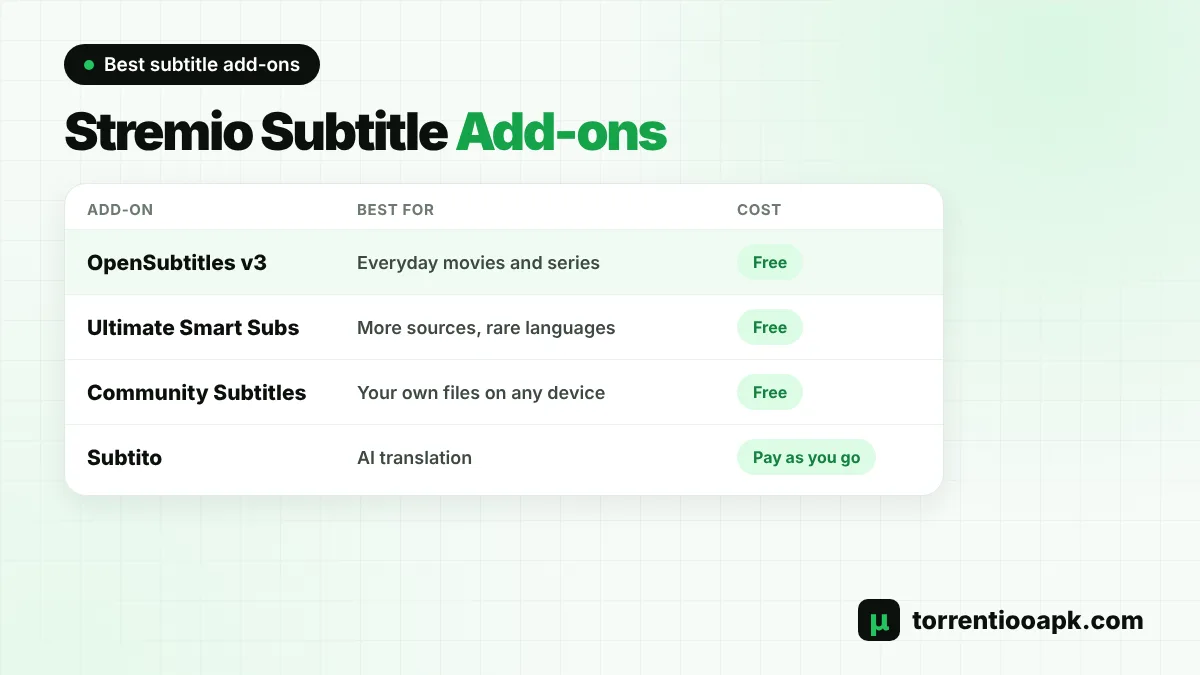
OpenSubtitles covers most popular titles, but extra add-ons can fill gaps. Here are the best options for Stremio subtitles this year:
| Add-on | What it does | Cost | Best for |
|---|---|---|---|
| OpenSubtitles v3 | Official subtitle add-on for movies and series | Free | Everyone |
| Ultimate Smart Subs | Searches several subtitle sites, ranks results, optional AI translation with your own key | Free (own API key for translation) | Less common languages |
| Community Subtitles | Upload your own files and use them on any device | Free | Phones and TVs |
| Subtito | AI translation when no subtitle exists in your language | Pay as you go | Rare languages |
OpenSubtitles v3
This is the default choice. It supports movies and series and needs no setup. If you don't see any Stremio subtitles at all, check that it's installed under Add-ons. You can get it from the OpenSubtitles v3 add-on page.
Ultimate Smart Subs
Ultimate Smart Subs searches several sources, including OpenSubtitles, SubDL and SubSource, then ranks the results. It can adjust timing when it has reliable evidence, though it says perfect sync isn't guaranteed. If no subtitle exists in your language, it can translate one using your own Gemini or DeepL key. It's in public beta on free hosting, so expect the odd delay.
Community Subtitles
As covered above, this add-on is ideal for your own files on devices without drag and drop. It's open source and lets people vote on subtitles.
Subtito
Subtito uses AI to translate subtitles on demand when none exist in your language. It doesn't transcribe audio, it translates existing subtitles. It's paid per translation, though subtitles already available in your language are free.
Don't install too many subtitle add-ons at once. Each one adds results to the menu and slightly slows loading. Two or three is plenty for most people.
Are Stremio Subtitles Free?
Yes, for most people. Stremio is free, and so is the official OpenSubtitles v3 add-on. Community Subtitles is free too. Ultimate Smart Subs doesn't charge you, but its optional AI translation uses your own Gemini or DeepL key, which may have its own limits. Subtito is the only paid option here, charging per translation, while subtitles that already exist in your language cost nothing. You never need to pay for basic Stremio subtitles in popular languages, so be wary of any site that asks for payment to "unlock" them.
Why Are There No Stremio Subtitles in My Language?
Stremio's help centre gives two main reasons. First, some countries block access to subtitle add-ons. It mentions Sweden, where OpenSubtitles is blocked. Second, sometimes nobody has translated a title into your language yet, especially for new or less popular releases.
What you can do:
- Install a second subtitle add-on that searches more sources.
- Check for embedded subtitle tracks by trying a different stream.
- Use an AI translation add-on for rare languages.
- Wait a few days after a new release, because subtitles often appear later.
- If your country blocks subtitle sites, read our is Torrentio safe guide for the privacy side of using a VPN.
Stremio Subtitles on Different Devices
The basics are the same everywhere, but each device has its own quirks:
- Windows, Mac and Linux: the most complete subtitle controls, including drag and drop for local files.
- Android phones: subtitle styling is in the player settings. Some anime fans use an external player for complex subtitle styles.
- Firestick and Android TV: use the remote to open the subtitles menu during playback. See our Torrentio Firestick guide for TV tips.
- Samsung and LG TVs: the January 2025 Samsung app update fixed the default subtitle selection. Our Stremio Samsung TV guide has more.
- iPhone and iPad: Stremio Web in Safari supports add-on subtitles. See our Torrentio iPhone guide.
How to Turn Off Stremio Subtitles
If subtitles turn on by themselves, it's usually because a default language is set or the video has a forced track. To switch Stremio subtitles off, open the subtitles menu during playback and choose Off or None. To stop them loading every time, clear the default subtitle language in the player settings. Stremio's help centre has separate guides for disabling subtitles on PC and Android if the option looks different on your device.
Using an External Player for Better Subtitles
On Android phones and Android TV devices, Stremio can hand a stream to an external player such as VLC instead of its built-in one. Some viewers do this for subtitles with complex styling, like the coloured signs and songs in many anime releases, because dedicated players render them more faithfully.
The trade-off is that the external player doesn't show Stremio's add-on subtitle list in the same way, so you'll mostly rely on embedded tracks. Try the built-in player first, and switch only if styled Stremio subtitles look wrong on your device.
Subtitles for Anime and Foreign Films
Anime and foreign-language films lean on subtitles more than anything else. Many anime releases include soft subtitles inside the file, so pick those streams first. For foreign films, choose a release with your language in its subtitle tags, or rely on OpenSubtitles for popular titles. Our Stremio anime guide covers the best add-ons and Torrentio settings for anime, including how to choose between subbed and dubbed releases.
Torrentio Tips for Better Subtitles
Your choice of Torrentio stream has a big effect on Stremio subtitles. These habits help:
- Choose popular releases: they have the most subtitle files made for them.
- Look for subtitle tags: release names that mention subs or several languages usually include embedded tracks.
- Use a debrid service: cached streams start faster, so switching to a stream with better subtitles takes seconds. Compare services in our best debrid for Stremio guide.
- Keep a priority language: Torrentio's language setting puts releases with your audio first, which often include matching subtitles.
Need to install Torrentio first? Follow our guide on how to install Torrentio on Stremio.
Subtitle Styles: Size, Colour and Position
Readable subtitles matter on a big TV or a small phone. In the player settings you can usually change the size, text colour and background. A slightly larger size with a semi-transparent background works well on TVs viewed from a sofa. On phones, a smaller size keeps more of the picture visible.
Some apps also let you raise or lower the subtitle position. That's useful when a film has burnt-in text at the bottom of the screen. If your device doesn't offer a setting you need, try the desktop app or another player.
Common Stremio Subtitles Problems and Fixes
| Problem | Likely cause | Fix |
|---|---|---|
| No subtitles at all | No subtitle add-on installed | Install OpenSubtitles v3 |
| Constant delay | File timed for another release | Use the + and − timing buttons |
| Delay grows over time | Different frame rate | Pick another file or stream |
| Wrong language loads | Default language or forced track | Change the default in player settings |
| Strange symbols | Wrong text encoding | Try another subtitle file |
| Missing in your country | Subtitle site blocked | Add another subtitle source |
If no streams load at all, the issue is Torrentio rather than Stremio subtitles. Check our Torrentio down guide.
Stremio Subtitles Checklist
- OpenSubtitles v3 is installed under Add-ons.
- A default subtitle language is set in the player settings.
- You know where the + and − timing buttons are.
- One extra subtitle add-on is installed for missing languages.
- You prefer popular Torrentio releases with embedded tracks.
Conclusion
Stremio subtitles are simple once you know where they come from. Install OpenSubtitles v3, set a default language in the player settings, and use the subtitles menu to switch files or fix timing with the + and − buttons. Add Ultimate Smart Subs or Community Subtitles if you need more languages or your own files, and pick popular Torrentio releases for the best match.
For the rest of your setup, see our guides to the best Torrentio settings and Stremio anime, or return to the Torrentio APK home page.
FAQs
How do I get subtitles on Stremio?
Play a video, open the subtitles menu in the player and choose your language. If no subtitles appear, install the official OpenSubtitles v3 add-on from the Add-ons section.
Why are my Stremio subtitles out of sync?
The subtitle file was made for a different release of the same title. Use the + and − timing buttons in the subtitles menu, or pick another file or stream.
Does Torrentio provide subtitles?
No. Torrentio only finds video streams. Subtitles come from subtitle add-ons such as OpenSubtitles v3, or from tracks embedded in the video file.
Can I add my own subtitle file to Stremio?
Yes. On Windows, Mac and Linux, drag and drop the .srt file onto the player window. On phones and TVs, use an add-on such as Community Subtitles to upload and use your own files.
What is the best subtitle add-on for Stremio?
OpenSubtitles v3 is the standard choice. Ultimate Smart Subs adds more sources and optional AI translation, and Community Subtitles is useful for your own files.
Why are there no subtitles in my language?
Either nobody has translated that title yet, or subtitle add-ons are blocked in your country. Try a second subtitle add-on or a stream with embedded subtitles.