
Table of Contents
- Why the Default Torrentio Settings Aren't Always Best
- Where to Find the Torrentio Configure Page
- Torrentio Best Settings at a Glance
- Providers: Which Ones Should You Enable?
- Sorting: The Best Option for Your Setup
- Max Results per Quality
- Priority Language
- Exclude Resolutions: What to Hide
- Video Size Limit: The Hidden Trick
- Debrid Provider and Options
- Torrentio Best Settings Without Debrid
- Torrentio Best Settings With Real-Debrid or TorBox
- Torrentio Best Settings for Firestick and Android TV
- Torrentio Best Settings for iPhone and Stremio Web
- Torrentio Best Settings Presets
- How to Apply and Save Your New Settings
- Common Torrentio Settings Mistakes
- How to Reset Torrentio to Default Settings
- Do Torrentio Settings Sync Across Devices?
- Torrentio Best Settings Checklist
- Conclusion
- FAQs
Looking for the Torrentio best settings? The default setup works, but a few smart changes on the configure page give you a cleaner stream list, faster playback and fewer broken links. The right choices depend on your device, your internet speed, your language and whether you use a debrid service.
This guide explains every option on the Torrentio configure page in plain words, shows the best value for each one, and gives you ready-made presets for phones, Firestick, 4K TVs, anime fans and mobile data. We checked every option on the live configure page in October 2026, when Torrentio was running version 0.0.15.
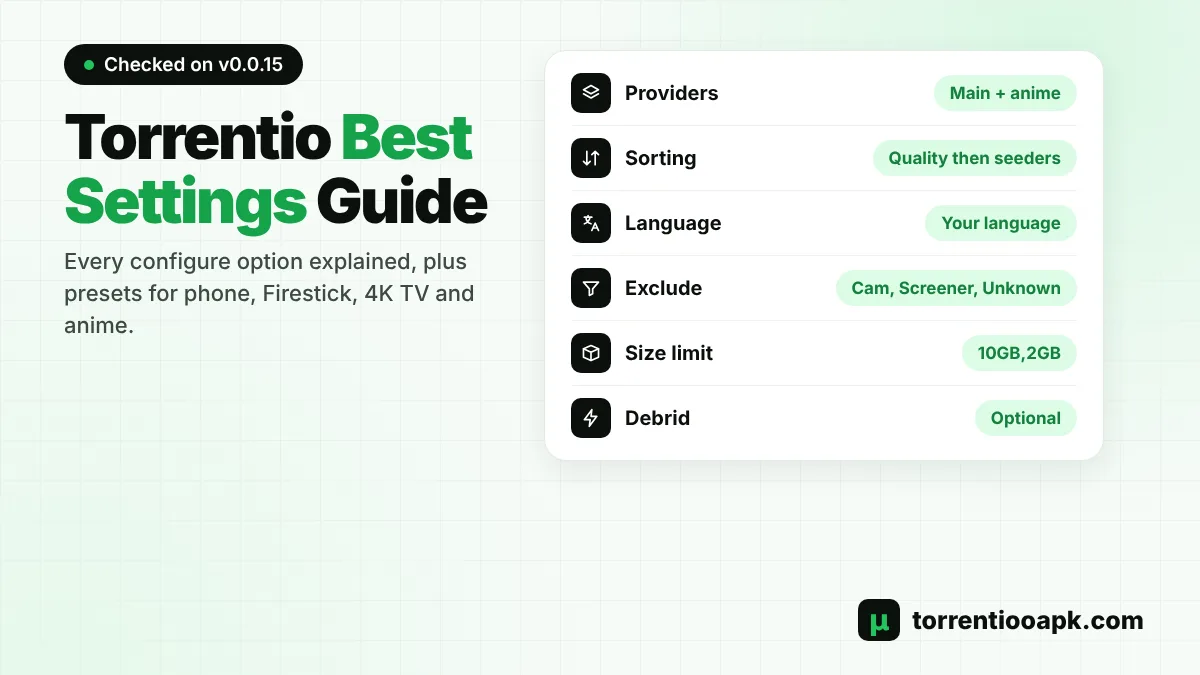
Torrentio best settings in short: keep the main providers on, sort by quality then seeders (or by quality then size with debrid), set your priority language, exclude Cam, Screener and Unknown, use a size limit like 10GB,2GB on slow connections, and add a debrid service if you can.
Why the Default Torrentio Settings Aren't Always Best
Out of the box, Torrentio searches every provider, shows every quality and has no size limit. That works, but it often gives you a long list full of huge 4K REMUX files, low-quality Cam copies and foreign-language releases you don't need. On a phone or a Firestick, picking the wrong file means long buffering. A few minutes spent on the Torrentio best settings fixes that, and you only need to do it once.
Where to Find the Torrentio Configure Page
All Torrentio settings live on one page: the official Torrentio configure page. You can open it in any browser, or from inside Stremio by going to Add-ons › Installed, finding Torrentio and selecting the gear icon. The gear opens the page with your current settings already filled in.
The page works the same on a phone, tablet or computer, but a computer or phone is much easier than a TV remote for ticking boxes and typing values. Every time you change something, you must tap Install again so Stremio uses the new settings. Your settings are saved inside your personal add-on link, which our Torrentio addon link guide explains in detail.
Torrentio Best Settings at a Glance
Here's the quick version of the Torrentio best settings. The sections below explain why each choice works.
| Setting | Free (no debrid) | With debrid |
|---|---|---|
| Providers | Main international + anime | Select all |
| Sorting | By quality then seeders | By quality then size |
| Max results per quality | 5 to 10 | 5 to 10 |
| Priority language | Your language | Your language |
| Exclude resolutions | Cam, Screener, Unknown, 4k | Cam, Screener, Unknown |
| Video size limit | 4GB,1GB | Empty or 20GB,4GB |
| Debrid options | Not needed | Hide debrid catalog |
Providers: Which Ones Should You Enable?
Torrentio can search 25 torrent sources. They fall into three groups:
- International: YTS, EZTV, RARBG, 1337x, EXT, ThePirateBay, KickassTorrents, TorrentGalaxy and MagnetDL. These cover most English movies and TV shows.
- Anime: HorribleSubs, NyaaSi, TokyoTosho, AniDex and nekoBT. Keep these on if you watch any anime.
- Regional: Rutor and Rutracker (Russian), Comando, BluDV and MicoLeaoDublado (Portuguese), Torrent9 (French), ilCorSaRoNeRo (Italian), MejorTorrent and Wolfmax4k (Spanish), Cinecalidad (Latin American Spanish) and BestTorrents (Polish).
Torrentio best settings for providers: keep every international and anime provider on. Turn on a regional provider only if you want audio in that language. Extra regional sources make the list longer without adding much for English viewers. With a debrid service, selecting all providers is fine, because more sources mean more chances of finding a cached file.
Sorting: The Best Option for Your Setup
Torrentio offers four ways to order results:
- By quality then seeders: best quality first, and within each quality the most-seeded file first. This is the best choice for free P2P streaming, because seeders decide how fast a stream starts.
- By quality then size: best quality first, then the largest file. Large files usually have higher bitrate and better picture. This is the best choice with debrid, where seeders matter much less.
- By seeders: ignores quality and puts the healthiest torrents first. Useful on weak connections.
- By size: largest files first. Mainly for home theatre users who want maximum quality.
For most people, the Torrentio best settings are "by quality then seeders" without debrid and "by quality then size" with debrid.
Max Results per Quality
This option limits how many links appear for each resolution. Leaving it empty shows everything, which can mean 30 or more links for a popular film. A value of 5 to 10 keeps the list short and easy to scan on a TV remote, while still giving you backups if the first link fails. If you use debrid and want the best chance of a cached file, set it to 10 or leave it empty.
Priority Language
Torrentio supports 41 priority languages, including Hindi, Telugu, Tamil, Spanish, Latino, Portuguese, French, German, Italian, Arabic, Turkish, Persian, Russian, Japanese, Korean, Chinese, Indonesian, Malay, Thai and Vietnamese. When you pick one, streams with that audio move to the top of the list.
Priority language doesn't hide other languages. English and other results still appear below. That makes it safe to set, even if your language only has a few releases. Remember that audio depends on each file, so check the language tag or release name before you press play.
Exclude Resolutions: What to Hide
This is the most powerful filter, and also the easiest to get wrong when you look for the Torrentio best settings. Here's what each box means and our advice:
| Option | What it hides | Exclude it? |
|---|---|---|
| Cam | Recordings made in a cinema | Yes, always |
| Screener | Early preview copies, often with watermarks | Yes, always |
| Unknown | Files with no clear quality label | Yes, in most cases |
| 4k | 2160p files, often 15GB to 60GB | Only if your TV or internet can't handle 4K |
| BluRay REMUX | Untouched disc copies, very large | Yes, unless you have a home theatre and fast debrid |
| Dolby Vision | Dolby Vision video | Yes, if your TV doesn't support Dolby Vision |
| HDR/HDR10+/Dolby Vision | All HDR formats | Only on non-HDR screens |
| 3D | 3D releases | Yes, unless you own a 3D display |
| Non 3D | Every normal 2D file | No, never |
| 480p and Other (DVDRip, HDRip) | Low-quality releases | Optional, keep for old titles |
Two warnings: never tick Non 3D, because it hides almost every normal file, and don't exclude 1080p and 720p together, or many titles will show no results at all. Dolby Vision files on a TV without Dolby Vision support can show strange green or purple colours, which is why excluding Dolby Vision helps on many Firesticks and older TVs.
Video Size Limit: The Hidden Trick
The video size limit hides files bigger than the size you type, such as 5GB or 800MB. Most people don't know that you can set two different limits: one for movies and one for series episodes, separated by a comma. For example, 10GB,2GB allows movies up to 10GB and episodes up to 2GB.
- Phone on mobile data:
3GB,800MB - Firestick or Android TV, free P2P:
6GB,2GB - TV with fast internet and debrid: leave empty, or
30GB,6GBto skip huge REMUX files
Debrid Provider and Options
A debrid service is the single biggest upgrade to any Torrentio setup. Torrentio supports RealDebrid, Premiumize, AllDebrid, DebridLink, EasyDebrid, Offcloud, TorBox, Put.io and HighWay. Choose your service, paste the API key, and two extra options appear:
- Don't show download to debrid links: hides files that aren't cached yet. Tick it for a clean list of instant streams. Leave it unticked if you also want to send rare files to your debrid account.
- Don't show debrid catalog: removes the extra row of your debrid downloads from the Stremio home screen. Most people tick it.
For step-by-step help, read our Torrentio Real Debrid setup guide.
Torrentio Best Settings Without Debrid
Most people start with the free setup, where streams come straight from other users over P2P. Here, seeders decide everything, so the Torrentio best settings for free use focus on healthy, reasonably sized files:
- Sort by quality then seeders, so well-seeded 1080p files appear at the top.
- Exclude 4k and BluRay REMUX. These files are huge and rarely stream smoothly over P2P.
- Use a size limit such as
6GB,2GBto skip files that would take too long to buffer. - Keep 5 to 10 results per quality, so you always have a backup link.
Without debrid, your IP address is visible to other peers in the swarm. Our guide is Torrentio safe explains what that means for your privacy.
Torrentio Best Settings With Real-Debrid or TorBox
With a debrid service, cached files play from fast servers, so the rules change. The Torrentio best settings for debrid users aim for maximum quality and the most cached results:
- Select all providers to find as many cached copies as possible.
- Sort by quality then size for the highest bitrate.
- Keep 4k on if your TV supports it, and leave the size limit empty or high.
- Tick Don't show debrid catalog to keep your home screen clean.
- Tick Don't show download to debrid links only if you never want to wait for uncached files.
Torrentio Best Settings for Firestick and Android TV
TV sticks have limited memory and many connect over Wi-Fi, so lighter files play better. For a Firestick or Android TV box, exclude Dolby Vision unless your TV supports it, exclude BluRay REMUX, and use a size limit like 8GB,2GB without debrid. Keep max results at 5 so the list is quick to scroll with a remote, and restart the stick after big changes. Our full Torrentio Firestick guide covers installation and Fire TV tips.
Torrentio Best Settings for iPhone and Stremio Web
Stremio Web plays video inside your browser, and browsers support fewer formats than the Stremio apps. For the smoothest playback on an iPhone, iPad or any browser, exclude 4k, HDR/HDR10+/Dolby Vision and BluRay REMUX, and prefer smaller 1080p or 720p files. A debrid service helps a lot here, because cached streams are delivered over normal HTTPS.
Torrentio Best Settings Presets
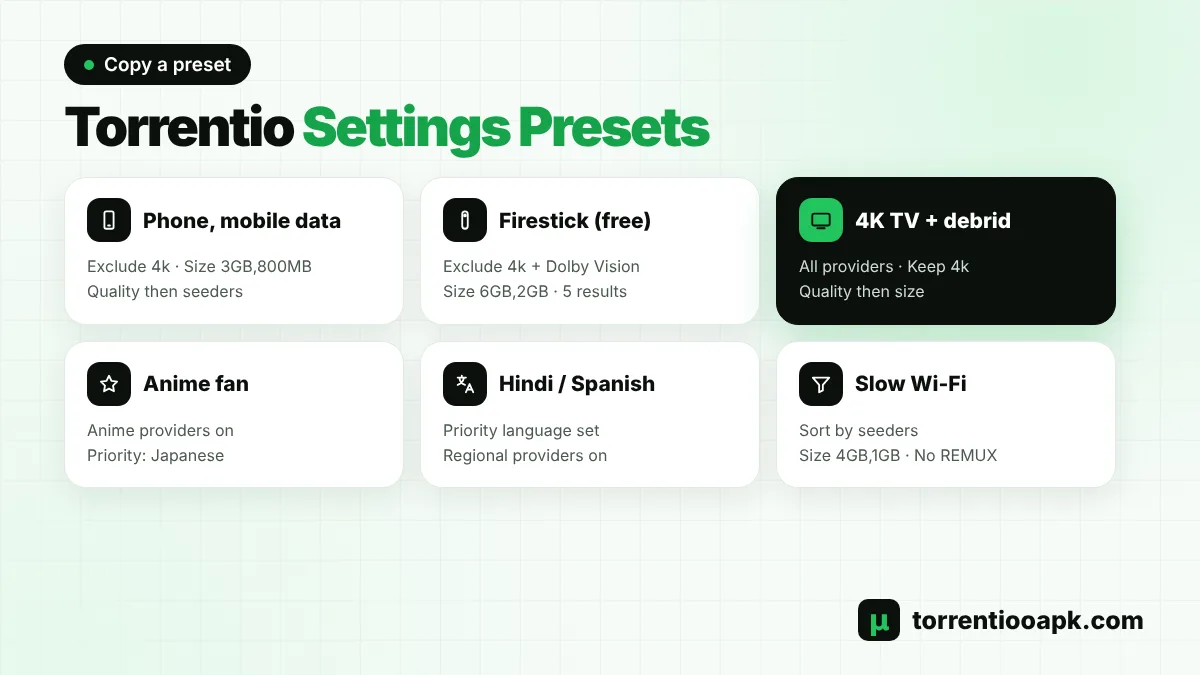
Don't want to think about each option? Copy the preset that matches your setup:
Phone on Mobile Data
Main providers, sort by quality then seeders, 5 results, exclude 4k, Cam, Screener and Unknown, size limit 3GB,800MB.
Firestick or Android TV (Free)
Main and anime providers, sort by quality then seeders, 5 results, exclude 4k, Dolby Vision, Cam, Screener and Unknown, size limit 6GB,2GB.
4K TV With Debrid
All providers, sort by quality then size, 10 results, exclude Cam, Screener, Unknown and 3D, size limit empty, hide debrid catalog.
Anime Fan
Keep all anime providers, priority language Japanese, sort by quality then seeders, exclude Cam and Screener.
Hindi, Spanish or Arabic Viewer
Priority language set to your language, regional providers for that language on, exclude Cam, Screener and Unknown.
Slow Wi-Fi
Sort by seeders, exclude 4k and BluRay REMUX, size limit 4GB,1GB, 5 results.
How to Apply and Save Your New Settings
- Open the configure page from Stremio's gear icon or in your browser.
- Change the settings you want.
- Tap Install and confirm inside Stremio.
- Open Add-ons › Installed. If you see two Torrentio add-ons, uninstall the older one.
- Open a popular movie to test the new stream list.
New to Stremio? Start with our guide on how to install Torrentio on Stremio, then come back to fine-tune your setup.
Common Torrentio Settings Mistakes
- Ticking "Non 3D" by accident, which hides almost every result.
- Excluding 1080p and 720p together, leaving only rare files.
- Setting a tiny size limit such as 1GB for movies.
- Changing settings without tapping Install again.
- Keeping several Torrentio add-ons with different settings installed at once.
- Turning off every provider except one or two.
If your stream list is suddenly empty after a change, undo these first. If nothing loads at all, the server may be busy, so check our Torrentio down guide.
How to Reset Torrentio to Default Settings
If you changed too many options and nothing makes sense anymore, start again from zero. Uninstall Torrentio from Add-ons › Installed, open the configure page in a private browser window so no old choices are loaded, and tap Install without changing anything. You can also paste the default link https://torrentio.strem.fun/manifest.json into the Add-ons search bar. Then apply the Torrentio best settings from this guide one step at a time.
Do Torrentio Settings Sync Across Devices?
Yes. Your settings are part of your personal add-on link, and Stremio saves that link to your account. Set up the Torrentio best settings once on your phone or computer, and the same settings appear on your Firestick, Android TV, smart TV and Stremio Web as soon as you sign in. If you want different settings on different devices, you would need separate Stremio accounts.
Torrentio Best Settings Checklist
Before you tap Install, run through this quick checklist:
- Main international and anime providers are on.
- Sorting matches your setup: seeders for free, size for debrid.
- Your priority language is selected.
- Cam, Screener and Unknown are excluded, and Non 3D is not ticked.
- The size limit fits your connection, using the movie,episode format.
- Your debrid key is pasted, if you have one.
If every point is ticked, you're using the Torrentio best settings for your device.
Conclusion
The Torrentio best settings are simple once you know what each option does. Keep the main providers on, choose the right sorting for free or debrid use, set your priority language, hide Cam, Screener and Unknown files, and use the comma trick in the size limit for movies and episodes. Pick one of the presets above, tap Install, and enjoy a cleaner, faster stream list on every device. Read more about the add-on on our Torrentio APK home page.
FAQs
What is the best sorting option in Torrentio?
Without debrid, choose By quality then seeders, because seeders decide how fast a stream starts. With a debrid service, choose By quality then size for the highest picture quality.
Which Torrentio providers should I select?
Keep all international providers (YTS, EZTV, 1337x and others) and the anime providers on. Add regional providers only if you want audio in that language, such as Spanish, Portuguese or Russian.
What should I exclude in Torrentio?
Exclude Cam, Screener and Unknown in almost every setup. Exclude 4k on phones or slow internet, and Dolby Vision if your TV does not support it. Never exclude Non 3D.
How do I set different size limits for movies and episodes?
Type two values separated by a comma in the video size limit box. For example, 10GB,2GB allows movies up to 10GB and series episodes up to 2GB.
Do I need to reinstall Torrentio after changing settings?
Yes. Your settings are saved in the add-on link, so tap Install again after every change and remove the old Torrentio from your installed add-ons.
What is the best max results per quality setting?
A value between 5 and 10 keeps the list short and easy to use while still giving backup links. With debrid, 10 or empty gives the best chance of finding a cached file.