
Table of Contents
- What You Need for a Torrentio Android TV Setup
- Does Torrentio Work on Android TV and Google TV?
- Which Devices Can Run Torrentio?
- Step 1: Install Stremio on Your Android TV
- Install Stremio by Sideloading (If It's Not in Google Play)
- Step 2: Log In to Your Stremio Account
- Step 3: Add Torrentio From Your Phone
- Add Torrentio Directly on the TV
- Torrentio Android TV on Sony, TCL, Hisense and Philips TVs
- Torrentio Android TV on Nvidia Shield
- Torrentio Android TV on Chromecast With Google TV
- Best Torrentio Android TV Settings
- Add Real-Debrid or TorBox on Android TV
- Improve Playback on Android TV
- Use an External Player on Android TV
- How to Update Stremio on Android TV
- Torrentio Android TV vs Firestick
- Common Torrentio Android TV Mistakes
- Torrentio Android TV Not Working? Quick Fixes
- Is Torrentio Safe on Android TV?
- Torrentio Android TV Setup Checklist
- Conclusion
- FAQs
Want a smooth Torrentio Android TV setup on your big screen? Torrentio works on every Android TV and Google TV device, from a Chromecast with Google TV or an Nvidia Shield to Sony, TCL, Hisense and Philips smart TVs. Because these TVs run Android, you get the full Stremio app, the full Torrentio feature set and the freedom to sideload if you need to.
This guide shows you how to install Stremio on Android TV, add Torrentio without typing long links, connect a debrid service, pick the best TV settings and fix the most common problems. Every step works on both Android TV and the newer Google TV interface.
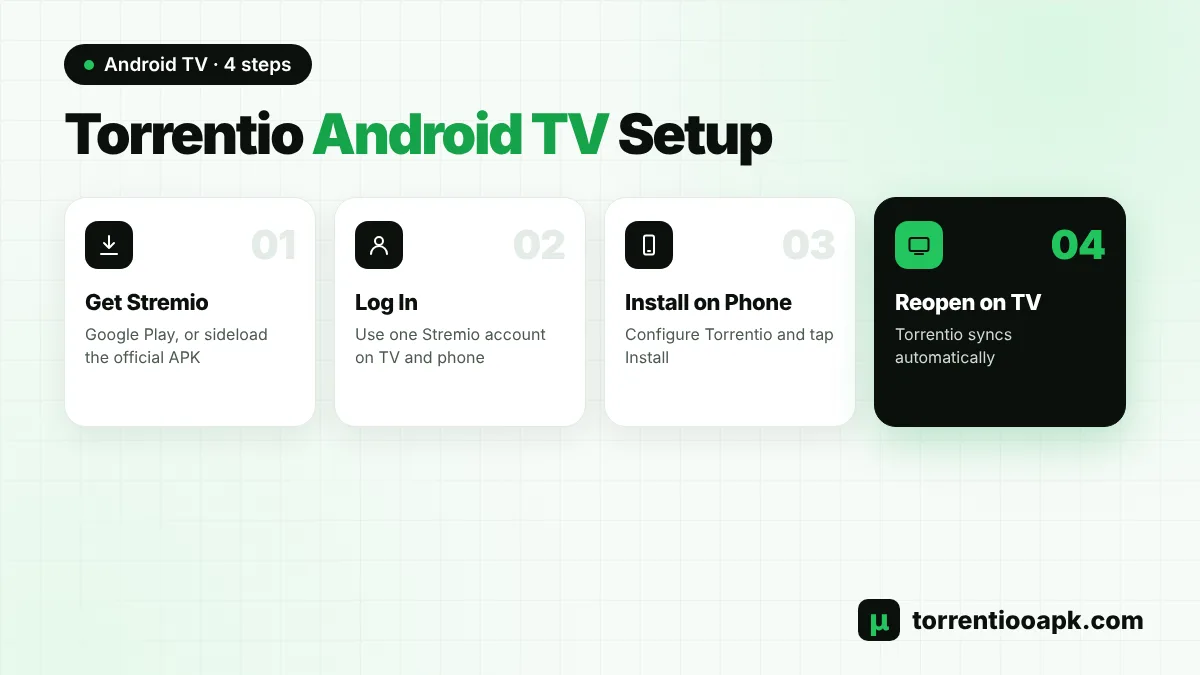
Quick steps: Get Stremio from Google Play on the TV (or sideload the official Android TV APK) › log in › use your phone to build your Torrentio link at torrentio.strem.fun/configure, logged in with that same account › press Install › restart Stremio on the television. Torrentio shows up by itself.
What You Need for a Torrentio Android TV Setup
- An Android TV or Google TV device with a working internet connection.
- A free Stremio login, which carries add-ons from your phone to the TV.
- A phone or computer with a browser for the Torrentio configure page.
- Roughly 1GB to 2GB of spare storage on the TV or box.
- Optional: a Real-Debrid or TorBox plan for faster, cached streams.
With these ready, the whole Torrentio Android TV setup takes about five minutes.
Does Torrentio Work on Android TV and Google TV?
Yes. Torrentio is a Stremio add-on, and Stremio has a dedicated Android TV app with a TV-friendly interface for the remote. Google TV is simply a newer home screen on top of Android TV, so the Torrentio Android TV setup is the same on both.
Nothing from Torrentio is installed on the TV itself. It runs on a web server, and Stremio requests a list of links from it whenever you pick a movie or episode. That's why updates reach your TV automatically and why the same add-on works on your phone, computer and TV at once. You never need to look for a separate Torrentio file for your television.
Which Devices Can Run Torrentio?
Any device that runs Android TV or Google TV can use Torrentio through Stremio. Popular choices include:
| Device type | Examples | Notes |
|---|---|---|
| Streaming sticks and boxes | Chromecast with Google TV, Google TV Streamer, Xiaomi TV Box and TV Stick, onn. 4K boxes | Affordable and easy to set up |
| Premium boxes | Nvidia Shield TV and Shield TV Pro | Very powerful, great for 4K and large files |
| Smart TVs with Google TV or Android TV | Sony Bravia, TCL, Hisense, Philips and Sharp models | No extra box needed |
| Projectors with Android TV | Many home and portable projectors | Check that the Play Store is official |
Samsung and LG TVs don't run Android, but Stremio has its own apps for them. Our Torrentio on Stremio install guide covers those TVs, and our Torrentio Firestick guide for Amazon devices.
Step 1: Install Stremio on Your Android TV
Start with the Google Play Store on your TV, because it's the easiest and keeps Stremio updated automatically:
Open Google Play
On Google TV, go to the Apps tab or use search. On Android TV, open the Google Play Store app.
Search for Stremio
Type "Stremio" or use the voice button on your remote.
Install
Select the official Stremio app and choose Install.
Open the App
Launch Stremio from your apps row once the install finishes.
Stremio's availability in Google Play has changed over time and can differ by country. If you can't find it, use the sideload method below with the official file from the Stremio downloads page.
Install Stremio by Sideloading (If It's Not in Google Play)
Android TV lets you install apps from outside the Play Store. Here's the safe way to do it with the free Downloader app:
- Install Downloader from Google Play on your TV.
- Unlock Developer Options: go to Settings › System › About and click Android TV OS build seven times.
- Allow installs: open Settings › Apps › Security & restrictions › Unknown sources and switch Downloader on. On some TVs this is under Settings › Device Preferences › Security.
- Open Downloader, type
stremio.com/downloads, open the TV section and choose the Android TV APK for ARM or ARM64. - Install the file, then turn "Unknown sources" off again for Downloader.
You can also copy the APK to a USB drive on your computer and install it with a file manager app on the TV. Either way, only use the official file from Stremio's website.
Step 2: Log In to Your Stremio Account
Launch the app on the TV and log in. No account yet? Register on your phone first, since entering an email and password letter by letter with a remote takes ages. Logging in is the key to an easy Torrentio Android TV setup: your add-ons, library and watch history are all saved to your account and follow you to every device.
Step 3: Add Torrentio From Your Phone
This is the fastest way to finish, and you never need to type a link on the TV:
- Grab your phone or laptop and log in to Stremio or Stremio Web using that same account.
- Visit the official Torrentio configure page and set your filters and options.
- Press Install, then approve the add-on in Stremio.
- Back on the television, quit Stremio completely and launch it again.
- Open Add-ons › Installed. Torrentio is now there, ready to use.
Add Torrentio Directly on the TV
No phone nearby? Go to Add-ons on the TV, highlight the search field, enter torrentio.strem.fun/manifest.json and pick Install. Typing is much easier with the Google TV app on your phone, which turns your phone into a remote with an on-screen keyboard, so you can type or paste the link without pressing every letter on the remote. This route adds Torrentio with default settings, which you can adjust any time from your phone. Every official link is listed on our Torrentio addon link page.
Torrentio Android TV on Sony, TCL, Hisense and Philips TVs
Smart TVs with Android TV or Google TV built in don't need any extra box. A few brand tips help:
- Sony Bravia: most recent models run Google TV. Stremio installs from the Apps tab, and these TVs handle 4K and HDR well.
- TCL: many TCL models run Google TV, while some run other systems such as Roku. Check that your TV shows the Google Play Store.
- Hisense: some Hisense TVs run Google TV or Android TV, but many run VIDAA. Only Android-based models support the steps in this Torrentio Android TV guide.
- Philips: many Philips TVs run Android TV or Google TV. Some newer models use Titan OS, which has its own Stremio app.
If your TV doesn't run Android, a cheap Google TV stick plugged into an HDMI port gives you the full Torrentio Android TV experience.
Torrentio Android TV on Nvidia Shield
The Nvidia Shield TV is a favourite among Stremio users because it plays almost every format, including large 4K REMUX files and Dolby Vision, without stuttering. It also has an Ethernet port for stable speed. On a Shield, you can keep 4k on, leave the size limit empty with debrid, and enjoy the best picture your TV can show. It's the premium choice for a Torrentio Android TV setup.
Torrentio Android TV on Chromecast With Google TV
The Chromecast with Google TV and the newer Google TV Streamer are affordable and easy to use. The older Chromecast has limited storage, so clear Stremio's cache now and then and uninstall apps you don't use. Choose 1080p or efficient 4K files, and use a debrid service for the smoothest playback. The Google TV Streamer adds an Ethernet port, which helps with big files.
Best Torrentio Android TV Settings
Android TV devices range from budget sticks to powerful boxes, so pick settings that match your hardware:
- Budget sticks and older TVs: exclude 4k and BluRay REMUX, use a size limit like
8GB,2GB, and prefer H.264 releases. - Nvidia Shield and newer Google TV devices: keep 4k on, leave the size limit empty with debrid, and enjoy HDR streams.
- TVs without Dolby Vision: exclude Dolby Vision to avoid green or purple colours.
- Everyone: exclude Cam, Screener and Unknown, and keep max results at 5 to 10 so the list is easy to scroll with a remote.
Our full Torrentio best settings guide explains every option on the configure page.
Add Real-Debrid or TorBox on Android TV
A debrid service is the biggest upgrade for any TV. Cached streams play from fast servers, so even large 4K files start in seconds without your TV joining the torrent swarm. Do this part on your phone: add the API key on the configure page, install the new link and restart Stremio on the TV. Follow our Torrentio Real Debrid guide or the Torrentio TorBox guide for full steps. Keep in mind that Real-Debrid permits streaming from a single IP address at once, whereas TorBox is more flexible.
Improve Playback on Android TV
Most buffering problems on TVs come from the network or from files that are too heavy for the device, not from Torrentio itself. These simple changes make a big difference, especially on budget sticks and older smart TVs that share Wi-Fi with many other devices at home:
- Use an Ethernet cable or 5GHz Wi-Fi for large files.
- Turn on Match content frame rate in your TV's display settings, if available, for smoother motion.
- Clear Stremio's cache in Settings › Apps › Stremio › Clear cache when things feel slow.
- Keep at least 1GB to 2GB of storage free.
- Restart the TV or box every few days to free memory.
- Pick H.264 releases on older devices that struggle with HEVC.
Use an External Player on Android TV
Stremio's built-in player handles most files, but some formats play better in a dedicated player. On Android devices, Stremio's settings let you choose an external player, such as VLC or Just Player, when one is installed. Switching players often fixes missing audio, stuttering or subtitle problems with certain files, and you can switch back to the built-in player at any time. If you're new to picking streams, our guide on how to use Torrentio explains which files work best.
How to Update Stremio on Android TV
Torrentio updates itself on its server, so your Torrentio Android TV add-on is always current. Stremio is updated through Google Play automatically if auto-updates are on. For a sideloaded copy, grab the latest Android TV APK from Stremio's site and install it on top of the current one. Nothing is lost: your login, library and add-ons remain.
Torrentio Android TV vs Firestick
Both make great Torrentio devices, but there are differences. Android TV and Google TV run full Android with Google Play, and sideloading is always available through Developer Options. Firesticks run Amazon's Fire OS, and some newer Fire TV models use Vega OS, which blocks sideloading. If you want maximum flexibility, a Torrentio Android TV setup on a Google TV device or an Nvidia Shield is hard to beat. If you already own a Fire OS stick, it works just as well for everyday streaming.
Common Torrentio Android TV Mistakes
- Using a different Stremio account on the TV: add-ons only sync within the same account.
- Installing a modified "Stremio" app: unofficial versions can be unsafe and may stop working.
- Leaving "Unknown sources" on: switch it off after sideloading for better security.
- Playing Dolby Vision on a TV without it: colours look green or purple.
- Choosing huge 4K REMUX files on a budget stick: they need fast internet and a powerful device.
Avoid these and your Torrentio Android TV experience will be smooth from day one.
Torrentio Android TV Not Working? Quick Fixes
Problem: Can't Find Stremio in the Play Store
Solution
- Sideload the official Android TV APK with Downloader or a USB drive.
Problem: Torrentio Doesn't Appear on the TV
Solution
- Check that both devices use the same Stremio account.
- Sign out and back in on the TV to force a sync.
Problem: Streams Buffer or Stop
Solution
- Choose links with higher seeder counts or a cached [RD+] or [TB+] label.
- Lower the quality and use a wired connection.
Problem: No Streams at All
Solution
- Loosen your filters and confirm your debrid key is valid.
- Test the server using our Torrentio down guide.
Is Torrentio Safe on Android TV?
Because Torrentio adds nothing to the TV itself, it poses no risk to the hardware. Get Stremio from Google Play or the official website, switch "Unknown sources" off after sideloading, and keep your TV's software updated. Free P2P streaming exposes your IP address to other peers, and a large share of torrents are copyrighted works, so read our guide is Torrentio safe before you start.
Torrentio Android TV Setup Checklist
- Stremio is installed from Google Play or the official APK.
- The TV and your phone use one shared Stremio login.
- Torrentio was added through the official configure page.
- Settings match your device: 4K and Dolby Vision only where supported.
- A debrid key is in place, if you have a plan.
- A test movie plays smoothly.
Tick every point and your Torrentio Android TV setup is complete.
Conclusion
A Torrentio Android TV setup takes only a few minutes. Install Stremio from Google Play or sideload the official APK, log in, then push Torrentio across from your phone using one shared account. Choose settings that match your TV's power, add a debrid service for instant 4K, and keep your connection fast and your storage tidy. Whether you use a Chromecast, an Nvidia Shield or a Sony Bravia, Torrentio will be ready on your big screen. More step-by-step guides are waiting on our Torrentio APK home page.
FAQs
Can I use Torrentio on Google TV?
Yes. Google TV runs on Android TV, so you can install Stremio and add Torrentio exactly as on any Android TV device, such as a Chromecast with Google TV or a Google TV Streamer.
How do I install Torrentio on Android TV without typing?
Sign in to the same Stremio account on your phone and TV. Install Torrentio on your phone from the configure page, then reopen Stremio on the TV and the add-on appears automatically.
Is there a Torrentio app for Android TV?
Torrentio is not a separate app. It is a Stremio add-on, so you install the Stremio app on your Android TV and then add Torrentio to it.
What is the best Android TV box for Torrentio?
The Nvidia Shield TV is one of the most powerful options for 4K and large files. Google TV devices such as the Chromecast with Google TV or Google TV Streamer are good, affordable choices.
Why does Torrentio buffer on my Android TV?
Buffering usually comes from slow Wi-Fi, low seeders or files that are too large for the device. Use Ethernet or 5GHz Wi-Fi, choose 1080p and pick streams with more seeders or a cached debrid tag.
Do I need Real-Debrid for Torrentio on Android TV?
No. Torrentio works for free, but a debrid service such as Real-Debrid or TorBox makes streams start faster and buffer less, especially in 4K.