
Table of Contents
- Before You Start: What You Need
- How to Use Torrentio in 6 Simple Steps
- How to Read the Torrentio Stream List
- How to Choose the Best Stream
- Understanding Release Names
- How to Use Torrentio for TV Series
- How to Use Torrentio for Anime
- How to Add Subtitles
- How to Use Torrentio Without Real-Debrid
- How to Use Torrentio With Real-Debrid or TorBox
- How to Use Torrentio on Phone, TV and PC
- How to Use Torrentio With Other Add-ons
- How to Use an External Player
- Save Titles and Continue Watching
- Common Mistakes Beginners Make
- What to Do When a Stream Doesn't Play
- How to Use Torrentio Safely
- How to Use Torrentio: Quick Cheat Sheet
- Conclusion
- FAQs
Installed the add-on and now wondering how to use Torrentio properly? You're not alone. The first time you open a movie in Stremio, Torrentio can show 20, 30 or even 50 streams, each full of numbers, symbols and strange release names. Pick the wrong one and you'll get buffering, the wrong language or a blurry copy.
This beginner's guide shows you how to use Torrentio step by step: how to find a title, how to read every part of the stream list, how to choose the best stream for your device and internet, and how to handle series, anime, subtitles and debrid links. By the end, you'll pick a good stream in seconds.
Quick answer: Search a movie or show in Stremio, open it, scroll to the stream list, and choose a Torrentio result that matches your screen (for example 1080p), has plenty of seeders (the 👤 number) and a sensible file size (the 💾 number). With a debrid service, pick a stream marked with a plus tag such as [RD+] or [TB+] for instant playback.
Before You Start: What You Need
To follow this guide on how to use Torrentio, you need three things ready:
- Stremio installed and signed in on your phone, computer, TV or Firestick. Get it from the official Stremio downloads page.
- Torrentio installed in Stremio. If you haven't done that yet, follow our guide on how to install Torrentio on Stremio.
- Sensible settings on the official Torrentio configure page, so the stream list isn't full of junk. Our Torrentio best settings guide explains every option.
A debrid service such as Real-Debrid or TorBox is optional. Torrentio works without one, and we cover both ways below.
How to Use Torrentio in 6 Simple Steps
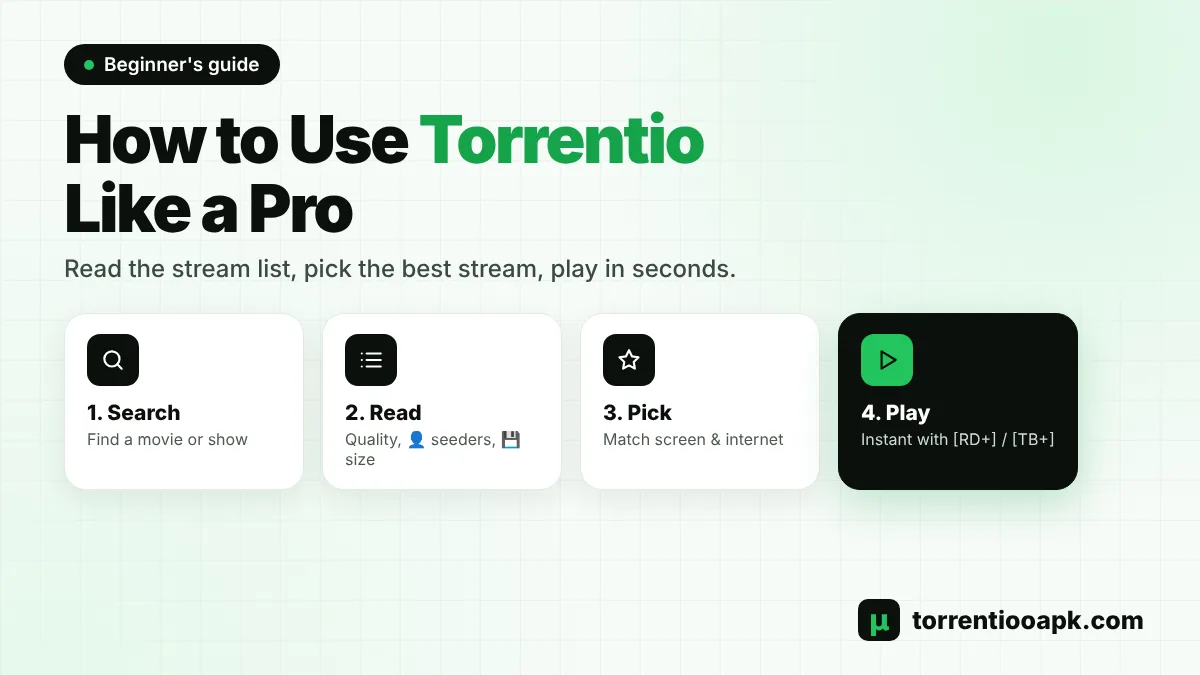
Torrentio doesn't have its own screen or menu. It works quietly inside Stremio and only appears when you open a title. Here's the full flow:
Step 1: Search for a Title
Open Stremio and use the search icon to look for a movie, series or anime. You can also browse the Board or Discover sections.
Step 2: Open the Title Page
Select the poster to open its details page with the description, rating and cast.
Step 3: Choose a Season and Episode
For a series, pick the season and then the episode. For a movie, skip this step.
Step 4: Open the Stream List
Scroll to the list of streams. Results from Torrentio are labelled "Torrentio", and results from other add-ons appear with their own names.
Step 5: Read the Stream Details
Check the quality, seeders, size, source and language of each result. The next section explains every detail.
Step 6: Press Play
Select the stream you like. Stremio starts playback in its built-in player. If it doesn't start within a minute, go back and pick another one. There's no limit to how many streams you can try, and switching costs nothing.
How to Read the Torrentio Stream List
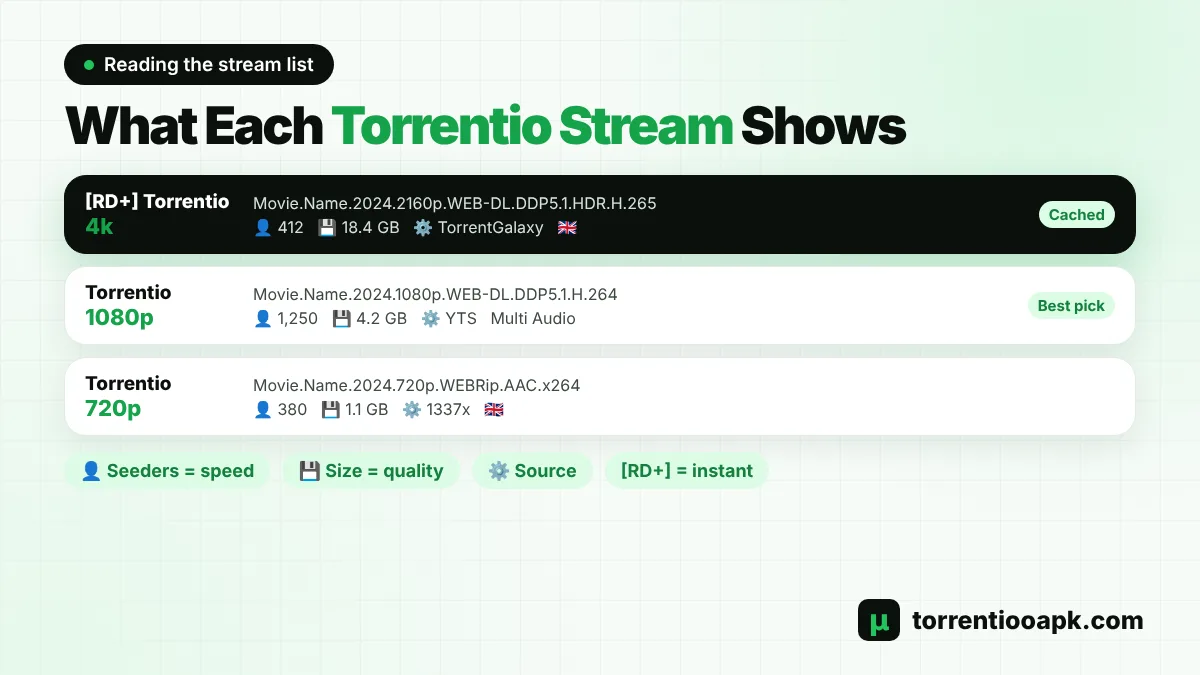
Learning how to use Torrentio is mostly about reading the stream list. Once you understand it, choosing a stream takes seconds. Every result has two parts: a short name on the left and a longer description. Here's what each piece means:
| What you see | Meaning | Why it matters |
|---|---|---|
| Torrentio 4k / 1080p / 720p | The video resolution | Match it to your screen and internet speed |
| [RD+], [TB+], [AD+] | Cached on your debrid service | Plays almost instantly |
| [RD download], [TB download] | Not cached yet | Needs to download to the debrid server first |
| Long release name | The file name, with source, codec and audio | Tells you the real quality of the copy |
| 👤 number | Seeders sharing the file | More seeders mean a faster free stream |
| 💾 number | File size | Bigger files look better but need faster internet |
| ⚙️ name | The torrent source, such as YTS or EZTV | Some sources are known for small, efficient files |
| Flags or "Multi Audio" | Audio languages in the file | Check before you play if you need a certain language |
How to Choose the Best Stream
Now that you can read the list, here's how to use Torrentio to pick a winner every time. Follow these rules in order:
- Match the quality to your screen. On a phone, 720p or 1080p is plenty. On a 4K TV with fast internet, 4K looks best.
- Check your internet speed. As a rough guide, 720p needs about 5 Mbps, 1080p about 10 Mbps and 4K about 25 Mbps or more.
- Prefer more seeders when you don't use debrid. A stream with 300 seeders starts much faster than one with 5.
- Look at the size. A 1080p movie of 2GB to 8GB is a good balance. Very small files can look poor, and very large ones can buffer.
- Avoid Cam and TS copies. They're recorded in cinemas and look and sound bad.
- Check the audio language if you need dubbed audio.
| Your setup | Best stream to pick |
|---|---|
| Phone on mobile data | 720p or small 1080p, under 2GB |
| Laptop on home Wi-Fi | 1080p WEB-DL, 2GB to 6GB |
| Firestick or TV box on Wi-Fi | 1080p with high seeders or a cached tag |
| 4K TV with debrid | 4K cached stream, HDR if your TV supports it |
Understanding Release Names
The long file name tells you much more than the resolution. Take this example: Movie.Name.2024.1080p.WEB-DL.DDP5.1.H.264-GROUP. Here's how to read it:
- 2024: the release year, useful for telling remakes apart.
- 1080p: the resolution.
- WEB-DL or WEBRip: taken from a streaming service, usually clean and good quality.
- BluRay: from a Blu-ray disc, often the best picture. REMUX means an untouched disc copy, which is very large.
- HDTV: recorded from TV, sometimes with logos.
- DDP5.1, AAC, Atmos: the audio format. 5.1 and Atmos are surround sound.
- H.264 or x264: the most compatible video format. H.265, x265 or HEVC gives smaller files but needs a newer device.
- HDR, DV: High Dynamic Range or Dolby Vision. Only choose these if your TV supports them.
- GROUP: the name of the group that made the release.
If an older device stutters with HEVC or x265 files, pick an H.264 release instead. That small change fixes a lot of playback problems.
How to Use Torrentio for TV Series
Series work a little differently. After you pick an episode, Torrentio shows both single-episode files and full season packs. A season pack contains every episode, so it often has more seeders and is more likely to be cached on debrid. Stremio plays only the episode you chose from inside the pack.
When an episode ends, Stremio can offer the next one automatically. Torrentio helps it pick a matching file from the same release, so quality and audio stay consistent while you binge. If the next episode doesn't start, go back to the episode list and choose it manually.
Brand-new episodes can take a few hours to appear. If you see no links right after an episode airs, wait a little and refresh the page.
How to Use Torrentio for Anime
Torrentio searches dedicated anime sources such as NyaaSi, TokyoTosho, AniDex and nekoBT, and it understands Kitsu IDs used by many anime catalogs. For the best results, install an anime catalog add-on that uses Kitsu and open shows from there. Set Japanese as your priority language on the configure page if you prefer original audio with subtitles. Fan-subbed releases often include subtitles inside the file, which appear in the player's subtitle menu.
How to Add Subtitles
Stremio has a subtitle menu in its player. While a video is playing, open the subtitles icon and choose a language. Subtitles come from two places: tracks built into the video file and subtitle add-ons such as OpenSubtitles, which Stremio includes by default. If the text is out of sync, use the delay setting in the subtitle menu to move it forward or back. Picking a popular release usually gives the best-matching subtitles, because more people have synced subtitles for it.
How to Use Torrentio Without Real-Debrid
Most people start for free, and it works well for popular titles. Here's how to use Torrentio without a debrid service:
- Sort by quality then seeders on the configure page.
- Pick streams with high seeders, ideally 50 or more.
- Choose 1080p over 4K unless your connection is very fast.
- Give a stream up to a minute to start, since it needs to connect to peers first.
Free streams connect you to other users, so your IP address is visible to them. Read is Torrentio safe before you decide how to stream.
How to Use Torrentio With Real-Debrid or TorBox
With a debrid key added, the stream list gets new tags. A plus tag such as [RD+] or [TB+] means the file is cached and plays almost instantly. A download tag means the file isn't cached yet. Tapping it asks your debrid service to fetch the file, and Stremio may show a short "downloading" video. It's usually quicker to pick another stream with a plus tag. Set it up with our Torrentio Real Debrid guide or the Torrentio TorBox guide.
How to Use Torrentio on Phone, TV and PC
The stream list looks the same on every device, but each screen has its own small habits. Here's how to use Torrentio on the devices people use most:
- Android phone: scroll the list with your thumb and tap a stream to play. On mobile data, pick smaller 720p or 1080p files to save data.
- iPhone and iPad: use Stremio Web in Safari. Browsers play fewer formats, so H.264 releases and cached debrid links work best.
- Firestick and Android TV: use the remote's up and down keys to move through the list. Keep the result limit low in your settings so you don't scroll forever. Our Torrentio Firestick guide and Torrentio Android TV guide have TV-specific tips.
- Windows and Mac: the desktop app plays almost every format and shows the full release name, which makes it the easiest place to learn how to use Torrentio.
How to Use Torrentio With Other Add-ons
Torrentio isn't the only source in Stremio. If you install other stream add-ons, their results appear in the same list with their own names. That's useful when Torrentio has few results for a rare title. Keep two or three add-ons at most so the list stays manageable. Our comparison of Torrentio vs Comet explains how two of the most popular add-ons work together.
How to Use an External Player
Stremio's built-in player handles most files, but some formats play better in a dedicated player. On Android devices, Stremio lets you choose an external player such as VLC or MX Player in its settings. On a computer, you can open streams in VLC as well. An external player is a good fix when a file has no sound, stutters or won't show subtitles in the built-in player.
Save Titles and Continue Watching
Add any movie or show to your Stremio Library with the bookmark button on its page. Your progress is saved automatically, so the "Continue Watching" row lets you jump back in on any device signed in to your account. Torrentio doesn't need to do anything special here, because Stremio handles your library and history. When you come back to a title, Stremio asks Torrentio for streams again, so you always get a fresh list.
Common Mistakes Beginners Make
- Always choosing the top stream without checking seeders or size.
- Playing 4K files on a 1080p TV or slow Wi-Fi.
- Picking Cam copies of new movies.
- Choosing Dolby Vision files on a TV that doesn't support Dolby Vision.
- Waiting forever on a stream instead of trying the next one.
- Installing several Torrentio add-ons and getting duplicate results.
What to Do When a Stream Doesn't Play
Even when you know how to use Torrentio well, some streams fail. Try these quick fixes:
- Go back and choose another stream with more seeders or a cached tag.
- Pick a lower quality or an H.264 release.
- Restart Stremio and try again.
- Check that your debrid plan is active, if you use one.
- If no streams appear at all, the server may be busy. Check our Torrentio down guide.
If Torrentio is down for a while, a backup from our list of Torrentio alternatives keeps you watching.
How to Use Torrentio Safely
Good habits matter as much as good settings. Install Torrentio only from its official configure page, never share your personal add-on link because it can contain your debrid key, and keep Stremio updated. Free P2P streams share your IP address with other users, so many people prefer a debrid service for privacy. Most importantly, use Torrentio only for content you have the right to watch in your country. Knowing how to use Torrentio safely protects both your device and your accounts.
How to Use Torrentio: Quick Cheat Sheet
| If you want... | Do this |
|---|---|
| Fast start without debrid | Pick the stream with the most 👤 seeders |
| Instant start with debrid | Pick a [RD+] or [TB+] stream |
| Best picture | Choose BluRay or WEB-DL in your screen's resolution |
| Less data use | Choose 720p or a small 1080p file |
| Your language | Check the flags or set a priority language |
| Smooth playback on old devices | Choose H.264 instead of HEVC |
Conclusion
Now you know how to use Torrentio like a pro. Search a title, open the stream list, and read each result: resolution, seeders, size, source and language. Pick a stream that matches your screen and internet, prefer high seeders without debrid or a plus tag with debrid, and avoid Cam copies and formats your device can't handle. With these habits, you'll spend less time scrolling and more time watching. Learn more about the add-on on our Torrentio APK home page.
FAQs
What do the symbols in Torrentio mean?
The person icon shows the number of seeders, the disk icon shows the file size, and the gear icon shows the torrent source. Flags show audio languages, and tags like [RD+] or [TB+] mean the file is cached on your debrid service.
Which Torrentio stream should I choose?
Choose a resolution that matches your screen, a file size your internet can handle, and the most seeders without debrid. With debrid, pick a stream with a plus tag such as [RD+] for instant playback.
Why does Torrentio show so many streams?
Torrentio searches many torrent sources at once, so popular titles have many copies in different qualities and sizes. You can shorten the list with the max results per quality setting.
How do I use Torrentio without Real-Debrid?
Sort by quality then seeders, choose streams with high seeders, prefer 1080p over 4K and give each stream up to a minute to start. Free streams work well for popular titles.
Why won't a Torrentio stream play?
The file may have few seeders, a format your device can't handle, or it may not be cached on your debrid service. Pick another stream, choose a lower quality or an H.264 release, and restart Stremio if needed.
Does Torrentio work with subtitles?
Yes. Stremio's player shows subtitles built into the file and subtitles from add-ons such as OpenSubtitles. Open the subtitles icon during playback to choose a language.