
Table of Contents
- Official Torrentio Addon Links (Copy and Paste)
- What Is the Torrentio Manifest URL?
- Why Torrentio Uses a Link Instead of a Normal App
- Torrentio Addon Link vs Torrentio Lite Link
- How to Create Your Personal Torrentio Link
- Torrentio Addon Link Settings Explained
- How to Use the Torrentio Addon Link in Stremio
- Torrentio Addon Link for Android TV and Firestick
- Best Torrentio Addon Link for Your Needs
- Torrentio Addon Link for Anime Fans
- How to Update the Settings in Your Torrentio Link
- Can You Use the Torrentio Link in Other Apps?
- How to Share Your Torrentio Link Safely
- Torrentio Addon Link Not Working? Quick Fixes
- Common Mistakes With the Torrentio Addon Link
- Beware of Fake Torrentio Links
- Torrentio Addon Link Quick Reference by Device
- Does the Torrentio Addon Link Change?
- Conclusion
- FAQs
Looking for the official Torrentio addon link? This page gives you every working link in one place: the configure page, the default manifest URL, the Torrentio Lite link and the format of your own personal link. You'll also learn how to paste the link into Stremio on any device, how to keep it safe and what to do when a link doesn't work.
All links below point to the official Torrentio server at torrentio.strem.fun. We checked them in October 2026, when the add-on was running version 0.0.15.
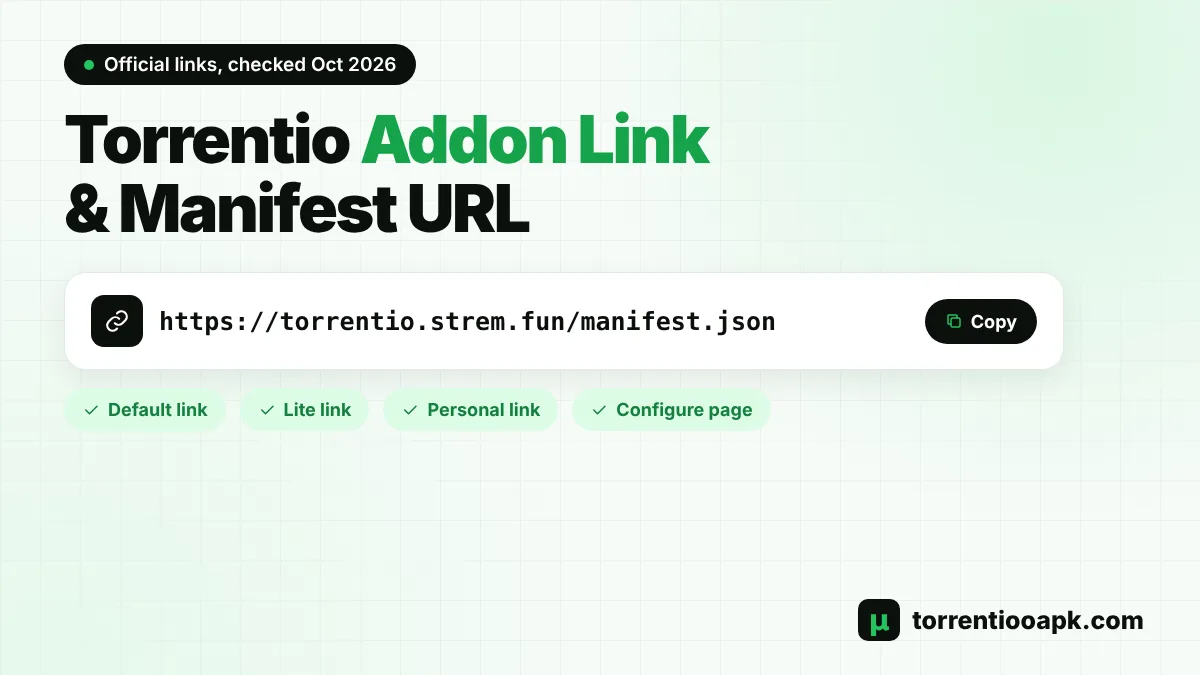
Official Torrentio addon link: https://torrentio.strem.fun/manifest.json
Paste it into the search bar on the Stremio Add-ons screen and tap Install. To choose your own settings first, open https://torrentio.strem.fun/configure.
Official Torrentio Addon Links (Copy and Paste)
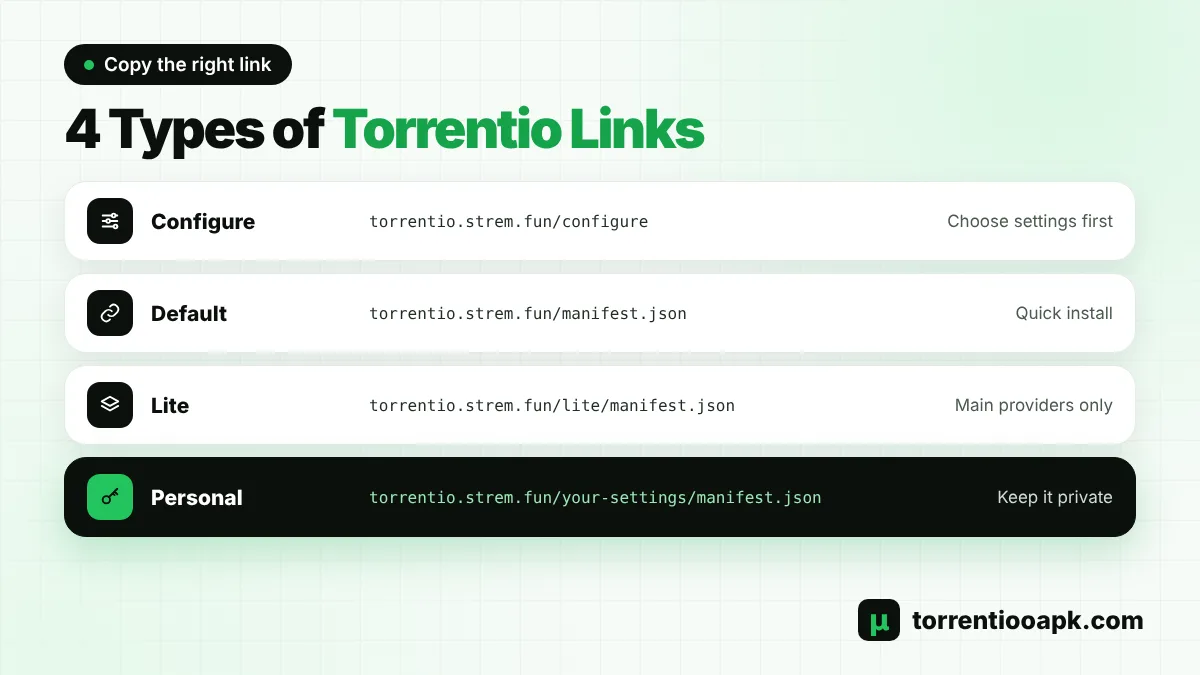
There are four kinds of Torrentio links. Each one has a different job:
| Link | URL | Use it for |
|---|---|---|
| Configure page | https://torrentio.strem.fun/configure | Choosing settings and debrid before installing |
| Default manifest | https://torrentio.strem.fun/manifest.json | Quick install with standard settings |
| Lite manifest | https://torrentio.strem.fun/lite/manifest.json | Lighter version with main providers only |
| Personal link | https://torrentio.strem.fun/your-settings/manifest.json | Your saved settings, created by the configure page |
If you just want Torrentio working right now, the default Torrentio addon link is all you need. If you want to pick a language, hide low-quality files or add Real-Debrid, start from the configure page instead.
What Is the Torrentio Manifest URL?
Every Stremio add-on has a small file called manifest.json. It tells Stremio the add-on's name, version, what it provides and which content it supports. When you paste a Torrentio addon link into Stremio, the app reads this file and shows you an Install card.
The Torrentio manifest says the add-on provides streams for movies, series and anime, using IMDb IDs and Kitsu IDs to match titles. It doesn't add any catalogs of its own to your home screen. That's why Torrentio only shows up in the stream list when you open a movie or an episode.
You can open the manifest link in any web browser. If a page of plain text loads, the Torrentio server is online. If it doesn't load, see our Torrentio down guide.
Why Torrentio Uses a Link Instead of a Normal App
Torrentio isn't a separate app that you install from a store. It runs on a web server, and Stremio talks to that server through the Torrentio addon link. When you open a movie, Stremio sends the movie's ID to Torrentio, and Torrentio sends back a list of matching streams.
This design has two big benefits. First, updates happen on the server, so you always use the latest version without reinstalling. Second, the same link works on phones, TVs and computers, because every Stremio app can read it. The only thing that lives on your device is the link itself, saved in your Stremio account.
Torrentio Addon Link vs Torrentio Lite Link
Torrentio Lite uses the same server and the same code, but it searches fewer sources. It keeps the main international and anime providers and switches off the regional ones.
| Feature | Standard link | Lite link |
|---|---|---|
| International providers (YTS, EZTV, 1337x and more) | Yes | Yes |
| Anime providers (NyaaSi, TokyoTosho, AniDex) | Yes | Yes |
| Regional providers (Russian, Portuguese, French, Italian, Spanish, Polish) | Yes | No |
| Result list | Longer | Shorter, often faster |
| Best for | Most users, non-English audio | English content, slower devices |
If you mainly watch English content, the Lite link gives a cleaner list. If you want dubbed or regional-language streams, stick with the standard Torrentio addon link or your personal link.
How to Create Your Personal Torrentio Link
Your personal link is a Torrentio addon link with your settings saved inside the URL. Stremio remembers it, so your filters and debrid service work on every device. Here's how to make one:
Step 1: Open the Configure Page
Go to the official Torrentio configure page in your browser.
Step 2: Choose Your Settings
Pick providers, sorting, priority language, resolutions to exclude and a video size limit.
Step 3: Add a Debrid Service (Optional)
Select your service under Debrid Provider and paste its API key.
Step 4: Copy or Install
Tap Copy Link to copy your personal link, or tap Install to send it straight to Stremio.
For example, if you sort by quality then size and exclude 4k and Cam, your link looks like this:
https://torrentio.strem.fun/sort=qualitysize|qualityfilter=4k,cam/manifest.json
Each setting is written into the middle of the link. When you add a debrid service, your API key is written into it as well. That's why a personal link is private and should never be shared.
Torrentio Addon Link Settings Explained
Have you ever looked at a long Torrentio addon link and wondered what all the words mean? Each part between the slashes is one setting, and the parts are separated by a | symbol. Here's what each one does:
| Part of the link | Example | What it means |
|---|---|---|
providers= | providers=yts,eztv,1337x | Which torrent sources Torrentio searches |
sort= | sort=qualitysize | How results are ordered |
language= | language=hindi | Which audio language is moved to the top |
qualityfilter= | qualityfilter=4k,cam,scr | Qualities that are hidden |
limit= | limit=10 | Maximum results per quality |
sizefilter= | sizefilter=4GB | Largest file size that is shown |
debridoptions= | debridoptions=nodownloadlinks,nocatalog | Hides download-to-debrid links and the debrid catalog |
realdebrid= | realdebrid=YOURKEY | Your debrid service and private API key |
If a setting is left at its default, it simply doesn't appear in the link. That's why the default Torrentio addon link is so short. You don't need to edit these parts by hand. The configure page builds the link for you, and it's always safer to change settings there.
How to Use the Torrentio Addon Link in Stremio
The Install button on the configure page uses a special stremio:// link that opens the app directly. If that doesn't work, or you're on a TV, paste the link by hand:
On Windows, Mac and Linux
- Open Stremio and click the puzzle icon to open Add-ons.
- Click the search bar at the top.
- Paste your Torrentio addon link and press Enter.
- Click Install on the Torrentio card.
On Android Phones and Tablets
Copy the link in Chrome, open Stremio, go to Add-ons, long-press the search bar, tap Paste and then Install. You can also tap Install on the configure page and choose Stremio when Android asks which app to open.
On Stremio Web and iPhone
Open web.stremio.com, sign in, go to Add-ons and paste the link into the search bar. The add-on is saved to your account and also appears in the Stremio apps.
For a full walkthrough of every device, read our guide on how to install Torrentio on Stremio.
Torrentio Addon Link for Android TV and Firestick
Typing a long link with a TV remote is slow and easy to get wrong. You have two easier options:
- Use account sync: Install Torrentio on your phone or computer while signed in to the same Stremio account. Reopen Stremio on the TV and the add-on is already there. This is the best way to use a personal link with debrid on a TV.
- Type the short default link: On the TV, open Add-ons, select the search bar and type
torrentio.strem.fun/manifest.json. You can change the settings later from the gear icon.
Best Torrentio Addon Link for Your Needs
Not sure which link to install? Pick by what you watch:
| You watch... | Best link |
|---|---|
| Mostly English movies and shows | Lite link |
| Hindi, Spanish, Arabic or other languages | Personal link with Priority Language set |
| Anime | Standard link (includes NyaaSi, TokyoTosho, AniDex and nekoBT) |
| With Real-Debrid or TorBox | Personal link with your debrid key |
| On a slow phone or mobile data | Personal link with a size limit and 4k excluded |
| Just testing Torrentio | Default link |
You can only keep one Torrentio add-on active without getting duplicate results, so choose the link that fits most of your viewing and stick with it. If your needs change later, for example when you buy a debrid plan or start watching anime, simply install a new link and remove the old one.
Torrentio Addon Link for Anime Fans
Anime viewers can use any Torrentio addon link, because both the standard and Lite versions search four anime-focused providers: NyaaSi, TokyoTosho, AniDex and nekoBT. Choose the standard link only if you also want regional dubs, such as Spanish, Portuguese or Russian audio, which come from the regional providers that Lite skips. Torrentio also understands Kitsu IDs, which many anime catalogs use, so episode numbers line up with the right streams.
For the best results, install an anime catalog add-on that uses Kitsu, open shows from that catalog, and set Japanese as your priority language if you prefer original audio with subtitles.
How to Update the Settings in Your Torrentio Link
You don't have to start from scratch to change a setting. In Stremio, open Add-ons › Installed, find Torrentio and select the gear icon. The configure page opens with your current settings already filled in. Change what you need and tap Install. Stremio replaces the old link with the new one. If you see two Torrentio add-ons afterwards, uninstall the older one.
Can You Use the Torrentio Link in Other Apps?
The Torrentio addon link is built for Stremio, but some other media apps also understand Stremio add-ons. Nuvio, for example, is an alternative player that lets you paste an add-on's manifest link and install it with the same settings. If an app says it supports "Stremio add-ons", it can usually use your Torrentio link too. Kodi doesn't support Stremio links.
Only paste a personal link with a debrid key into apps you trust, because the app can read your key from the link.
How to Share Your Torrentio Link Safely
Want to help a friend set up Torrentio? Share the right link:
- Share the configure page or the default Torrentio addon link, never your personal link.
- Don't post your personal link on Reddit, Discord, WhatsApp or YouTube comments.
- If your personal link with a debrid key was shared by mistake, create a new API key in your debrid account and reinstall Torrentio with it.
- Save your personal link in a password manager or private note so you can reinstall quickly.
Our Torrentio Real Debrid guide explains where to find and reset your API key.
Torrentio Addon Link Not Working? Quick Fixes
Problem: "Failed to Fetch" or Invalid Add-on
Solution
- Check for typos and make sure the link ends with
/manifest.json. - Open the link in a browser to see if the server is online.
Problem: Install Button Does Nothing
Solution
- Your browser can't open
stremio://links. Tap Copy Link and paste it in Stremio.
Problem: Old Settings Still Show
Solution
- Every change creates a new link. Uninstall the old Torrentio and install the new link.
Problem: Add-on Installed but No Streams
Solution
- Remove strict filters and check your debrid key.
- Try the Lite link to test if the full add-on is busy.
If no Torrentio link works for a while, you can switch to a backup from our list of Torrentio alternatives.
Common Mistakes With the Torrentio Addon Link
Most install problems come from small mistakes. Avoid these and the link will work the first time:
- Pasting the configure page instead of the manifest: Stremio needs a link ending in
manifest.json. The configure page link won't install anything. - Missing part of the link: When you copy a long personal link on a phone, the end is easy to cut off. Paste it into a note first to check it.
- Adding spaces: A space before or after the link can cause "failed to fetch" errors.
- Installing several versions: Two or three Torrentio links at once give duplicate results and slower loading.
- Using a link from a random website: Only copy links that start with the official domain.
Beware of Fake Torrentio Links
Because Torrentio is popular, many websites use its name. The add-on itself is served from torrentio.strem.fun. Before you paste a debrid API key anywhere, check that the address bar shows this exact domain. Copycat pages can look the same but send your key somewhere else.
A real Torrentio addon link always starts with https://torrentio.strem.fun/ and ends with manifest.json. Anything else, such as a link that asks you to download a file or log in, is not the official add-on link. Read more about staying safe in our guide, is Torrentio safe.
Torrentio Addon Link Quick Reference by Device
| Device | Easiest way to add the link |
|---|---|
| Windows, Mac, Linux | Click Install on the configure page, or paste in Add-ons |
| Android phone | Tap Install in Chrome and choose Stremio |
| Firestick, Fire TV | Install on your phone with the same account, then reopen Stremio |
| Android TV, Google TV | Account sync, or type the short default link |
| Samsung, LG smart TVs | Account sync from your phone or computer |
| iPhone, iPad | Paste the link in Stremio Web (web.stremio.com) |
Does the Torrentio Addon Link Change?
The default link has stayed the same for years, and updates to the add-on happen on the server. You don't need to reinstall Torrentio when a new version comes out. Your personal link only changes when you change your settings or your debrid key. In both cases, install the new link and remove the old one.
Conclusion
The official Torrentio addon link is https://torrentio.strem.fun/manifest.json. Use the Lite link for a shorter list of mainly English results, and the configure page to build a personal link with your own filters and debrid service. Paste any of them into the Stremio Add-ons search bar, keep your personal link private, and you'll have Torrentio running on every device in minutes. Find more guides and the latest app on our Torrentio APK home page and download page.
FAQs
What is the official Torrentio addon link?
The official Torrentio addon link is https://torrentio.strem.fun/manifest.json. Paste it into the Stremio Add-ons search bar and tap Install. To choose settings first, use https://torrentio.strem.fun/configure.
Where do I find my personal Torrentio link?
Open the Torrentio configure page, choose your settings and tap Copy Link at the bottom. The copied link contains your settings and, if you added one, your debrid API key.
What is the Torrentio Lite link?
The Lite link is https://torrentio.strem.fun/lite/manifest.json. It runs on the same server but skips regional providers, so the stream list is shorter and often loads faster.
Can I use the same Torrentio link on multiple devices?
Yes. Add-ons are saved to your Stremio account, so the same link works on every device where you sign in. With Real-Debrid, stream from only one network at a time.
Is the Torrentio addon link free?
Yes. The Torrentio add-on and its links are free to use. Only optional debrid services such as Real-Debrid or TorBox are paid.
Why does my Torrentio link say failed to fetch?
The link may have a typo, may be missing manifest.json at the end, or the Torrentio server may be busy. Open the link in a browser to test it and try again in a few minutes.