
Table of Contents
- What Is AIOStreams?
- AIOStreams vs Torrentio: What's the Difference?
- Who Should Use AIOStreams?
- Why Is Torrentio Disabled in AIOStreams?
- 3 Ways to Use AIOStreams Torrentio Together
- How to Set Up AIOStreams Step by Step
- Faster Start: Import an AIOStreams Template
- Which Add-ons to Put Inside AIOStreams
- Best AIOStreams Settings for Torrentio Users
- Using Debrid With AIOStreams and Torrentio
- Using AIOStreams Torrentio on TV, Phone and Stremio Web
- AIOStreams Public Instance Limits to Know
- How to Edit Your AIOStreams Configuration Later
- AIOStreams Torrentio Checklist
- Common AIOStreams Torrentio Errors and Fixes
- Is AIOStreams Safe to Use?
- Should You Use AIOStreams With Torrentio?
- FAQs
Trying to combine AIOStreams Torrentio results in one clean list, but Torrentio won't load? You're not alone. AIOStreams is one of the most popular Stremio add-ons of 2026 because it merges streams from many sources, removes duplicates and sorts everything your way. Yet many people see a message saying Torrentio is disabled the moment they try to add it.
This guide explains what AIOStreams is, why Torrentio is blocked on most public instances, the three setups that do work, and how to configure AIOStreams step by step so it sits neatly next to Torrentio in Stremio. We also cover the best filters, the Torrentio-style formatter and fixes for common errors.
Quick answer: Torrentio's developer has asked hosting providers not to scrape or aggregate Torrentio, so the free ElfHosted AIOStreams instance shows "Addon Torrentio is disabled". The easiest AIOStreams Torrentio setup is to install Torrentio directly in Stremio and use AIOStreams for your other add-ons. If you want Torrentio inside AIOStreams, you need a private, self-hosted or community instance that allows it.
What Is AIOStreams?
AIOStreams is a free, open-source Stremio add-on created by the developer Viren070. Its documentation describes it as a single "super-addon". Instead of showing results from five separate add-ons, it collects streams from your chosen add-ons, debrid and Usenet services, and its own built-in search, then returns one deduplicated, filtered and sorted list.
That solves a real problem. When you install Torrentio, Comet and MediaFusion separately, Stremio shows three long lists with many duplicates and different naming styles. AIOStreams merges them, hides what you don't want and puts the best stream at the top. The code is public on GitHub, and the official AIOStreams docs cover every option.
Torrentio, by comparison, is a single add-on that searches torrent providers. If you want the basics first, read what Torrentio is and how it works.
AIOStreams vs Torrentio: What's the Difference?
People often compare the two, but they do different jobs. Torrentio finds streams. AIOStreams organises streams that other add-ons and services find.
| Feature | Torrentio | AIOStreams |
|---|---|---|
| Main job | Searches torrent providers | Combines many sources into one list |
| Setup | One configure page, no account | Detailed menus, password and UUID |
| Duplicate removal | Within its own results | Across every source |
| Filters and sorting | Basic options | Advanced rules, regex and expressions |
| Debrid | Nine supported providers | Several services, ranked by preference |
| Who runs it | One public server by its developer | Many public, private and self-hosted instances |
So an AIOStreams Torrentio setup isn't about choosing one over the other. It's about getting Torrentio's results and AIOStreams' tidy list in the same Stremio account.
Who Should Use AIOStreams?
AIOStreams shines when your Stremio setup has grown. It's a good fit if you:
- Use three or more stream add-ons and are tired of duplicate results.
- Pay for two debrid services and want the best cached file first.
- Want strict rules, such as hiding everything below 1080p or files without your language.
- Watch on a TV and want a short, consistent list that's easy to scroll with a remote.
If you're new to Stremio, start with Torrentio alone. Once you understand the stream list, adding AIOStreams Torrentio side by side is an easy next step rather than a confusing first one.
Why Is Torrentio Disabled in AIOStreams?
If you add Torrentio on the free ElfHosted public instance, you'll see the message Addon Torrentio is disabled: Private instances only. ElfHosted explains the reason in its instance comparison guide: the Torrentio developer has asked hosting providers not to scrape or aggregate Torrentio, and ElfHosted respects that on its free public instances.
The same guide says Viren's own public instance can't use Torrentio either, because Torrentio blocks it. This makes sense when you remember how Torrentio works. It runs on one public server that its developer pays for. A shared AIOStreams instance used by thousands of people would send a huge number of requests to that single server.
So an AIOStreams Torrentio setup on a big public instance usually isn't possible, and the reason is a fair request from the Torrentio developer, not a bug. Read more about the project behind the add-on on our Torrentio GitHub page.
3 Ways to Use AIOStreams Torrentio Together
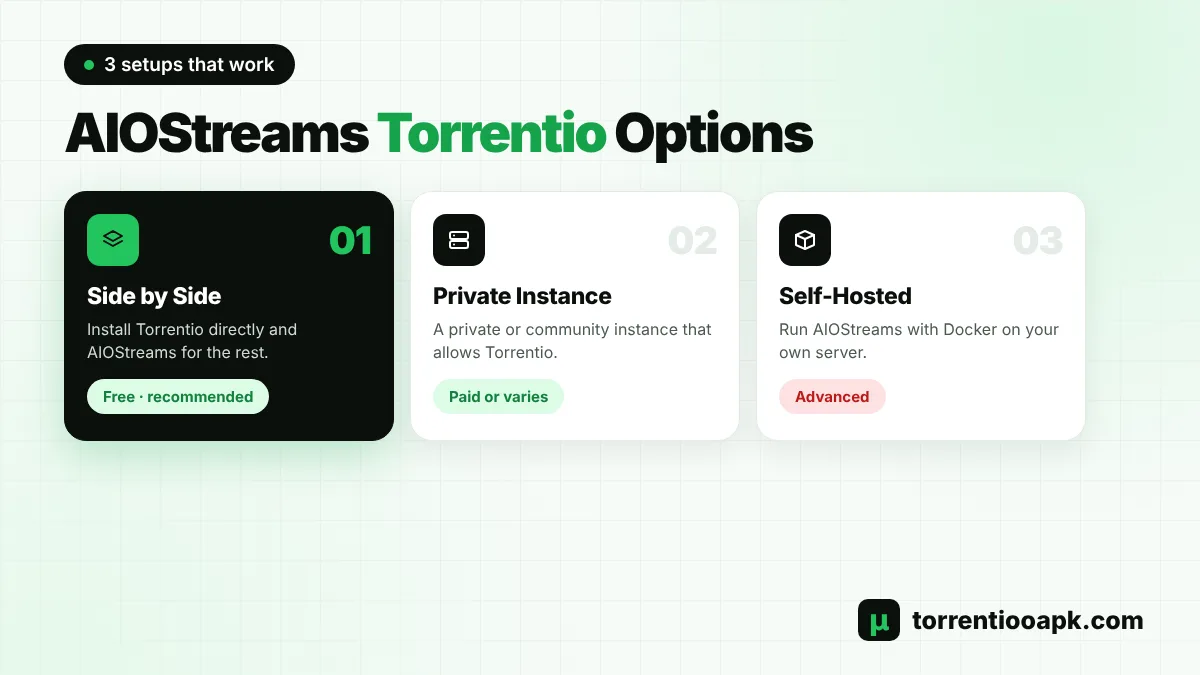
You still have good options. Here are the three AIOStreams Torrentio setups that work in 2026, from easiest to most technical.
Option 1: Install Torrentio and AIOStreams Side by Side (Recommended)
This is the simplest AIOStreams Torrentio method and respects the Torrentio developer's wishes. Install Torrentio directly from its official configure page, then install AIOStreams with your other add-ons inside it, such as Comet or MediaFusion. Stremio shows both on every title page.
You get Torrentio's results plus AIOStreams' merged list, at no cost. The only downside is that Torrentio's results aren't deduplicated against the others. Most people find that a small price for a setup that rarely leaves them without a stream.
Option 2: Use a Private or Community Instance
Some instances allow a true AIOStreams Torrentio setup, with Torrentio inside the merged list. ElfHosted's private AIOStreams instances include Torrentio and search, and its guide lists the price as $9 a month after a $1 seven-day trial. Some community instances also offer Torrentio, but availability changes without notice, so check each instance's notes before you build a configuration on it.
Option 3: Self-Host AIOStreams
Advanced users can run AIOStreams on their own server, NAS or VPS with Docker. A personal instance used by one household sends far fewer requests than a public one. The docs cover deployment, but you'll need to manage updates, uptime and your own API keys.
How to Set Up AIOStreams Step by Step
These steps follow ElfHosted's public instance, the most common starting point. The menus are the same on most other instances. Have your debrid API key ready before you begin.
Step 1: Open the Configure Page
Go to the AIOStreams configure page on your chosen instance. It opens on About with a Get started card. Choose Start setup to build your own, or Browse setups to import a ready-made template.
Step 2: Add Your Services
Open Services, switch on your debrid service, such as TorBox, Real-Debrid, AllDebrid or Premiumize, and paste its API key.
Step 3: Add a Few Add-ons
Open Addons, then Marketplace. Add two or three, such as Comet and MediaFusion. More add-ons mean slower results and more duplicates, not more choice.
Step 4: Set Your Filters
In Filters, put 1080p or 2160p at the top of Preferred Resolutions, set your preferred language and add result limits.
Step 5: Pick a Formatter
In Formatter, choose how each stream is displayed. There's an option that copies Torrentio's layout if you're used to it.
Step 6: Save and Install
In Save & Install, choose a password and select Create. You'll get a UUID. Save both, then select Install to Stremio, Install to Stremio Web, or copy the install link.
Then install Torrentio separately if you chose Option 1, and your AIOStreams Torrentio setup is complete. Our guide on how to install Torrentio on Stremio walks through it on every device.
Faster Start: Import an AIOStreams Template
Building a configuration from scratch takes time. The configure page also lets you Browse setups and import a ready-made template made by experienced users. You choose a template, tick the services you use, adjust a few inputs such as your preferred language, then enter your API keys and load it.
Some templates also ask for free TMDB and TVDB API keys, which help AIOStreams match titles correctly. You can create both on the TMDB and TVDB websites in a few minutes. A template is the quickest way to a polished AIOStreams Torrentio setup, and you can still change every option afterwards.
Which Add-ons to Put Inside AIOStreams
Since Torrentio usually stays outside AIOStreams, fill the Marketplace slots with add-ons that work well in a combined list. Popular choices include:
- Comet: the closest match to Torrentio, built for debrid users.
- MediaFusion: a large catalog with extra sources.
- StremThru Torz: recommended in Viren070's own setup guide for debrid results.
Keep it to two or three to start. Each extra add-on adds waiting time, and duplicates grow quickly. If you're curious how Comet compares directly, our Torrentio vs Comet guide covers speed, sources and settings.
Best AIOStreams Settings for Torrentio Users
If you're coming from Torrentio, these AIOStreams settings will feel familiar and keep the list short:
- Formatter: pick the Torrentio-style layout so quality, size and source look the way you're used to.
- Preferred Resolutions: 2160p then 1080p for a 4K TV, or 1080p first for phones and sticks.
- Result limits: 5 to 10 per resolution, so you don't scroll forever with a remote.
- Language: set your preferred audio language so it ranks first.
- Add-on timeout: keep it short so one slow add-on doesn't delay the whole list.
The same ideas work in Torrentio's own settings. Compare them in our Torrentio best settings guide, so both add-ons show a similar, tidy list.
Using Debrid With AIOStreams and Torrentio
AIOStreams lets you add several debrid services and rank them by preference. That's useful in 2026, because Real-Debrid's new content filter blocks some cached files. When that happens through AIOStreams, you may see a message such as "Unavailable for Legal Reasons. Try a different file." Picking another stream, or adding a second service such as TorBox, usually fixes it.
Torrentio keeps its own debrid settings on its configure page. If you use both add-ons, add your main service to each. Not sure which service to choose? Our guide to the best debrid for Stremio compares prices and rules, and our Torrentio TorBox and Torrentio Real Debrid guides cover the setup.
Using AIOStreams Torrentio on TV, Phone and Stremio Web
Like Torrentio, AIOStreams is installed to your Stremio account, not to one device. Set it up once on a computer or phone, and it syncs to your Firestick, Android TV, Samsung TV or iPhone the next time you open Stremio there. That's the easiest way to build an AIOStreams Torrentio setup for a TV, because the configure pages are much easier to use with a keyboard than a remote.
When you install, use Install to Stremio Web only if you're already signed in to Stremio Web with the same account, or your add-ons won't sync. If the install buttons don't open Stremio, copy the install link and paste it into the Add-ons search bar instead. Our Stremio Samsung TV guide and Torrentio addon link guide explain the same copy-and-paste method for Torrentio, so your AIOStreams Torrentio pair works on every screen.
AIOStreams Public Instance Limits to Know
Free public instances are shared by many people, so they come with rules. According to ElfHosted's documentation, its public instance:
- Returns debrid and Usenet streams only, not free peer-to-peer streams.
- Disables Torrentio, search APIs and AIOStreams-inside-AIOStreams.
- Uses a rate limit of 100 searches that refills at one per minute.
- Limits how many connections can play from one setup per hour, well above normal household use.
That's another reason the side-by-side AIOStreams Torrentio setup is popular. Torrentio handles free peer-to-peer streams on its own, while AIOStreams handles your debrid add-ons.
How to Edit Your AIOStreams Configuration Later
You don't need to start over when you want to change something. In Stremio, open Add-ons, find AIOStreams and select Configure. You can also open the configure page on your instance directly and log in with your UUID and password.
Make your changes, go to Save & Install and select Save. The docs say you only need to reinstall if a pop-up asks you to. Torrentio works differently: every time you change its settings, you tap Install again so Stremio gets the new personal link. Keeping both up to date is the key to a smooth AIOStreams Torrentio setup.
AIOStreams Torrentio Checklist
- Torrentio is installed directly from torrentio.strem.fun, or your instance allows it.
- AIOStreams has your debrid key under Services.
- Two or three add-ons are added from the Marketplace.
- Filters, result limits and the formatter are set.
- Your UUID and password are saved, and a backup is exported.
Common AIOStreams Torrentio Errors and Fixes
"Addon Torrentio is disabled"
Your instance doesn't allow Torrentio. Remove it from AIOStreams and install Torrentio directly in Stremio, or move to an instance that allows it.
"Failed to fetch manifest"
One of the add-ons inside AIOStreams didn't respond while you saved. The AIOStreams docs suggest disabling that add-on in the Addons menu and selecting Create again.
"Public rate-limit exceeded"
You've used up the instance's free searches. It refills by itself within a minute or two.
Torrentio Shows No Results
If Torrentio is installed directly and shows nothing, the Torrentio server may be busy. See our Torrentio down guide for a quick check.
Forgot Your Password or UUID
The docs say these can't be recovered, so you'll have to create a new configuration. Use the Export option under Backups next time to save a copy.
Is AIOStreams Safe to Use?
AIOStreams is open source, and like Torrentio it doesn't install anything on your device. It's a web add-on that returns links to Stremio. The main thing to protect is your configuration, because it holds your debrid API keys. Use a strong password, don't share your install link, and only use instances you trust. The privacy and legal points in our is Torrentio safe guide apply to AIOStreams too.
Should You Use AIOStreams With Torrentio?
If you use only Torrentio and you're happy with its list, you don't need AIOStreams. If you use three or more stream add-ons, or two debrid services, AIOStreams makes Stremio much easier to use. For most people, the best AIOStreams Torrentio setup is to run both side by side: Torrentio for its fast, simple results, and AIOStreams for everything else.
Want to see which add-ons work best inside AIOStreams? Read our list of Torrentio alternatives and our Torrentio vs Comet comparison, or return to the Torrentio APK home page.
FAQs
Can I add Torrentio to AIOStreams?
Only on instances that allow it. The free ElfHosted public instance disables Torrentio because the Torrentio developer asked hosts not to aggregate it. Private, self-hosted and some community instances can include it.
Why does AIOStreams say Torrentio is disabled?
The message means your instance doesn't allow Torrentio. Torrentio runs on one public server, and its developer has asked hosting providers not to scrape or aggregate it, so large public instances turn it off.
What is the easiest AIOStreams Torrentio setup?
Install Torrentio directly from its configure page and install AIOStreams separately for your other add-ons. Stremio shows both on every title, and it costs nothing.
Is AIOStreams better than Torrentio?
They do different jobs. Torrentio finds torrent streams, while AIOStreams combines, filters and sorts streams from many add-ons and services. Many people use both.
Is AIOStreams free?
Yes. AIOStreams is open source and public instances are free. ElfHosted also sells private instances, which its guide lists at $9 a month after a $1 trial.
Does AIOStreams work without a debrid service?
On ElfHosted's public instance it returns debrid and Usenet streams only. For free peer-to-peer streams, install Torrentio directly in Stremio or use an instance that allows P2P.